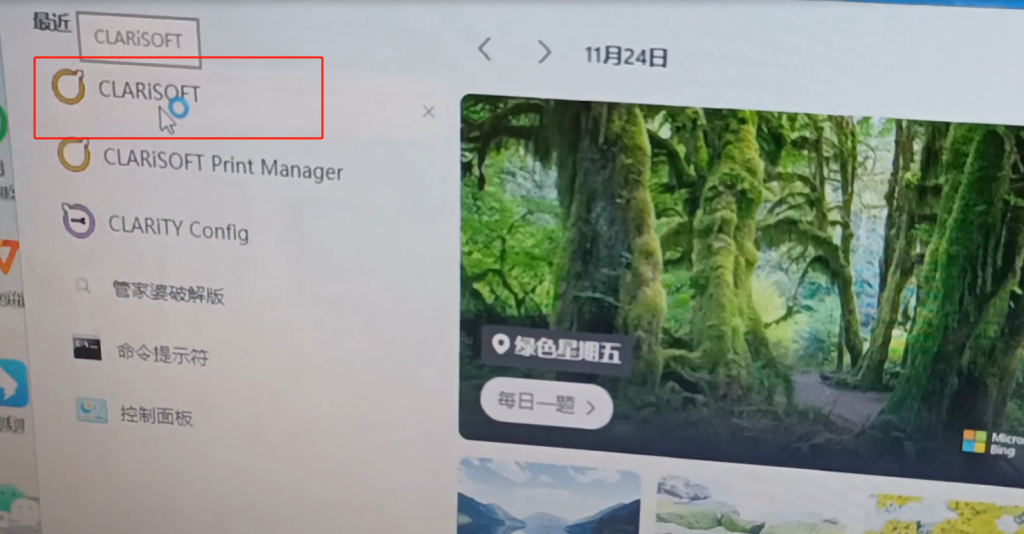
First, we need to open the CLARiSOFT software.
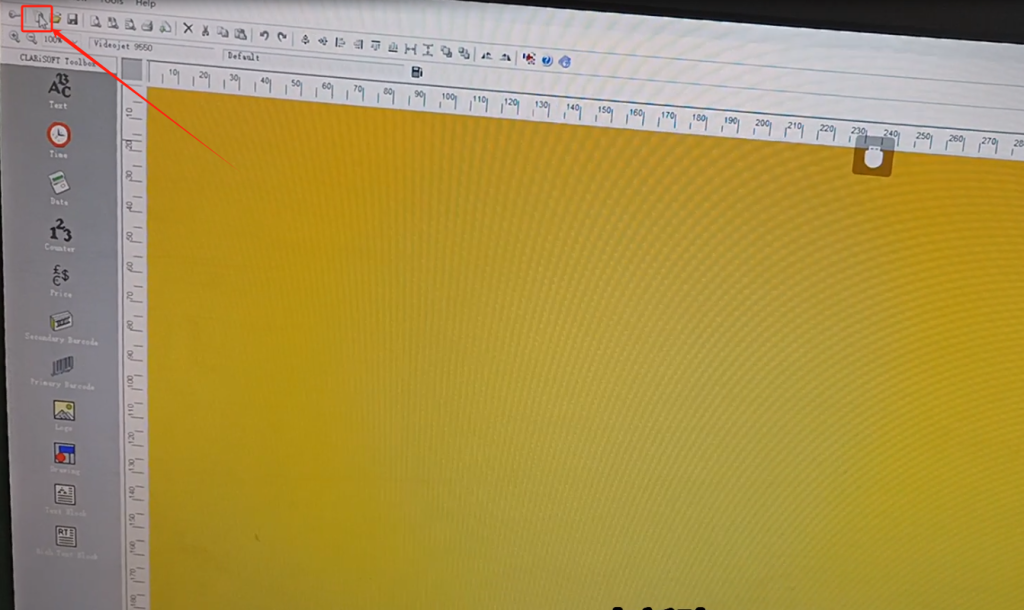
We build a new message and click new.
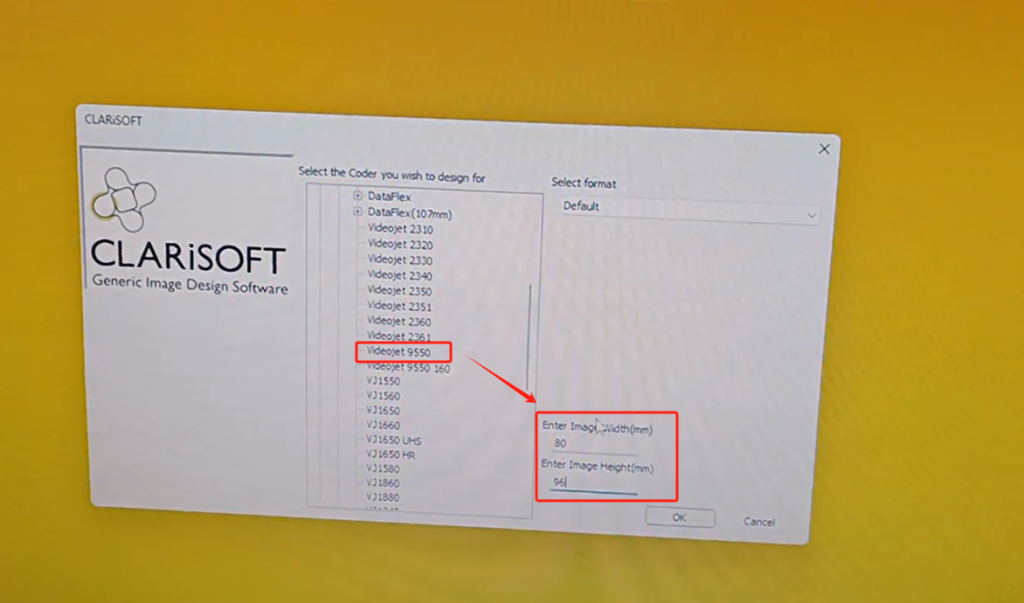
We find the number of 9550. Then we set the width, which matches the size of our label and ribbon. Because we have to print to the label, we lose the label. The tag is now 80 * 96 and we type it in. This one is the width, and then this one is its height. Height is the length, and the length of the label. Then determine.
We edit a few messages in this box. Make up a date, we just use it that big, here we want to pull him, that’s the date. Then we make up a barcode, and we use that code, and then we give him a few things, we input points, and then we decide. Then put it here and stretch it a little longer. Then we build a QR code, take a QR code, DM code, and then input a message into it, and then we widen it a little bit. You can pull it up a little bigger and put it in this position.
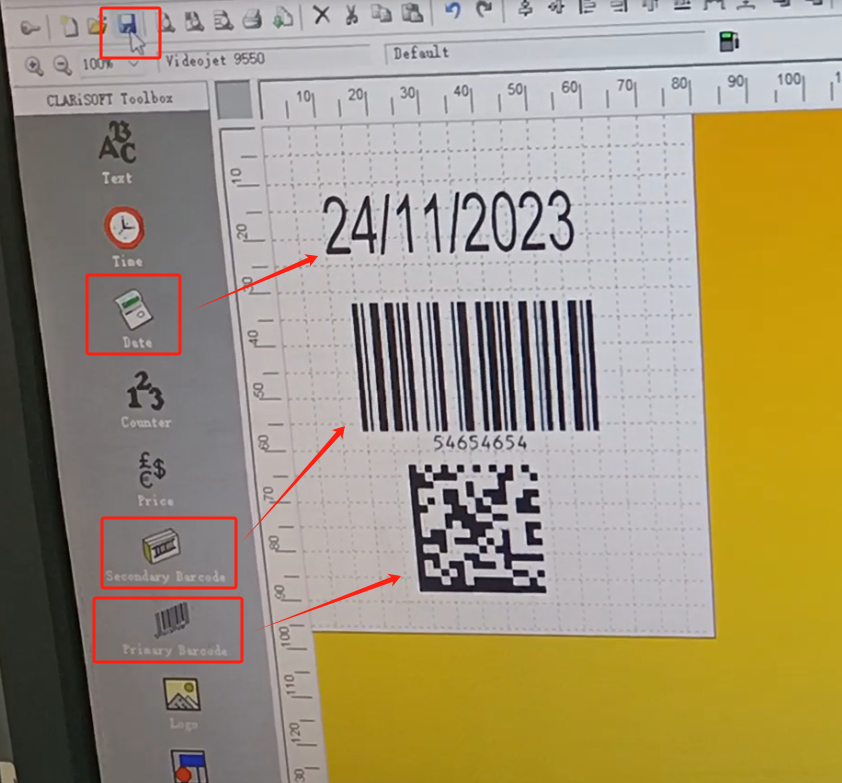
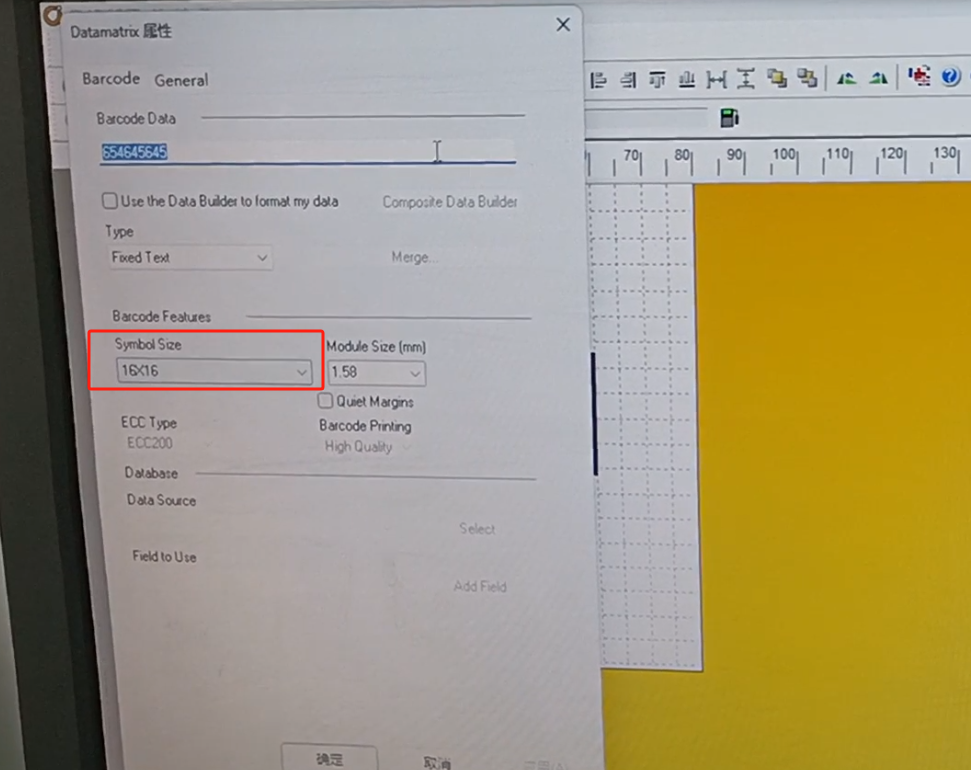
This can double click, you can change it. This size can be changed here, or just like me. And then we create the information, and we create so much information. Then we point to save.
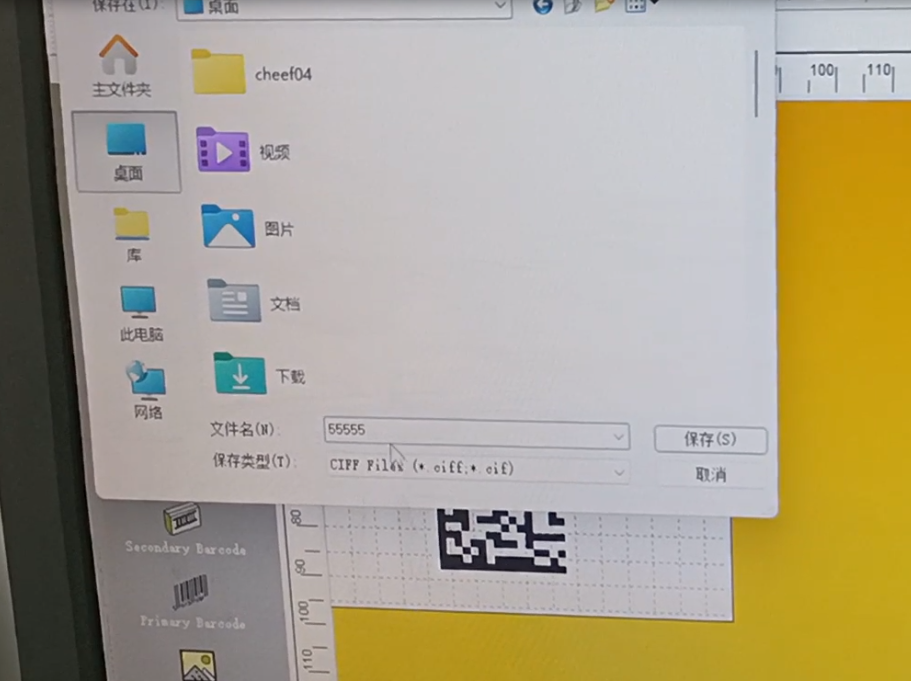
Give it a name, 55’s.
After saving it, we plug the u disk in the computer, and then we choose this Download.
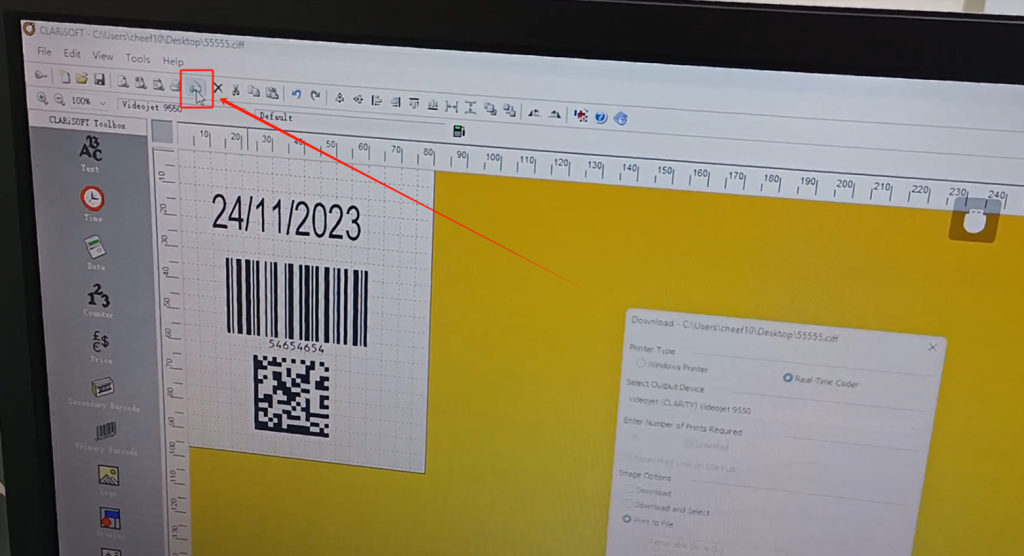
Choose the following one, it can automatically read to our u disk. Let’s click this preview the effect, then click OK.
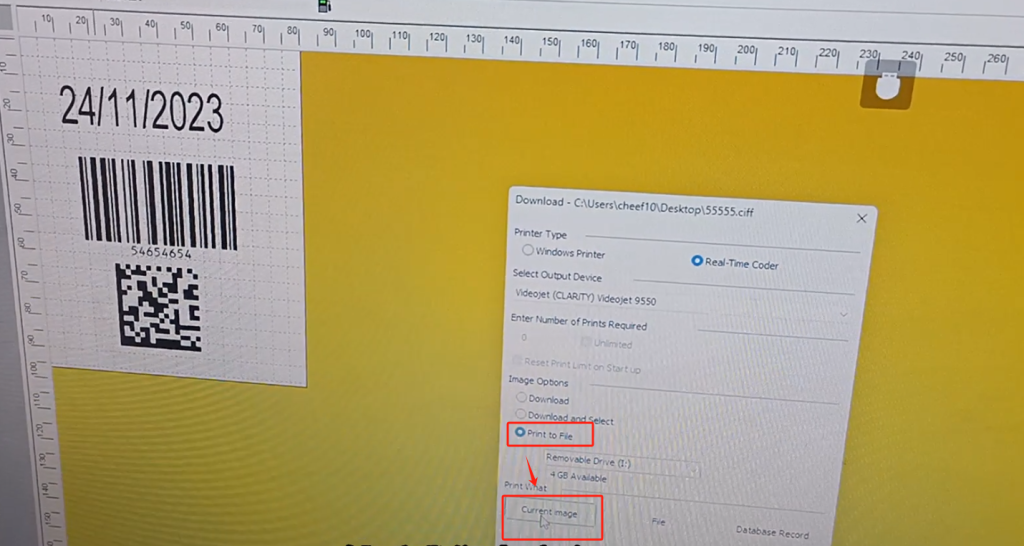
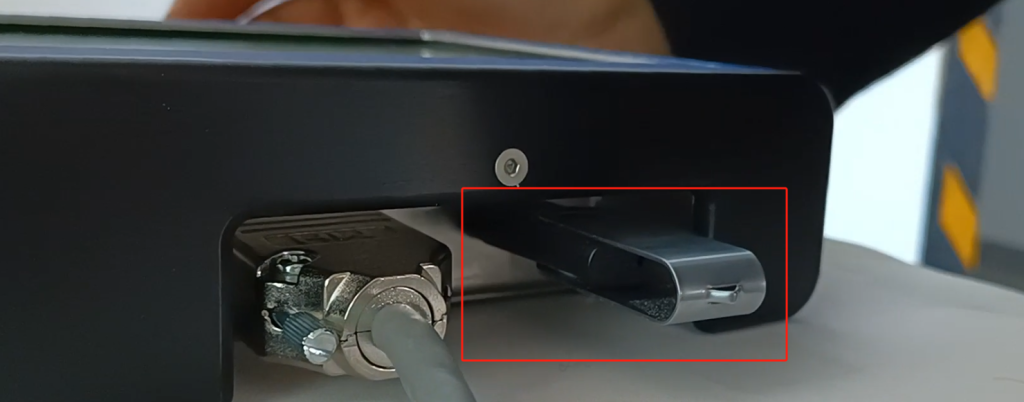
Then pull out the u disk and plug the u disk into our controller.
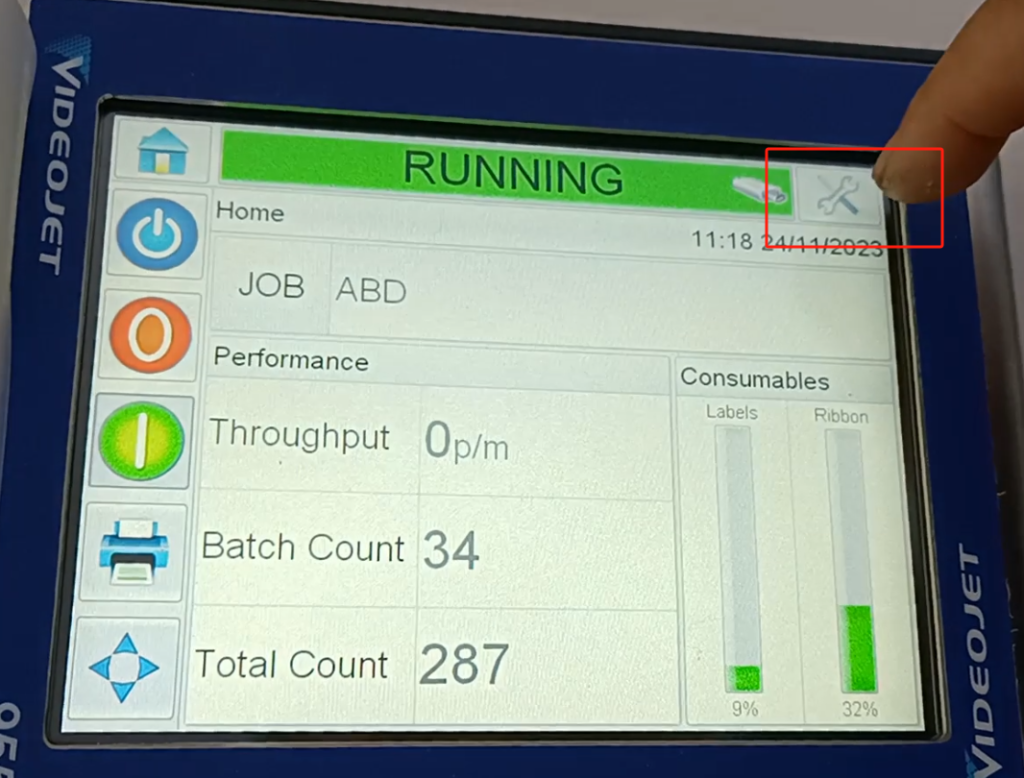
Then we will order this one.
Data external.
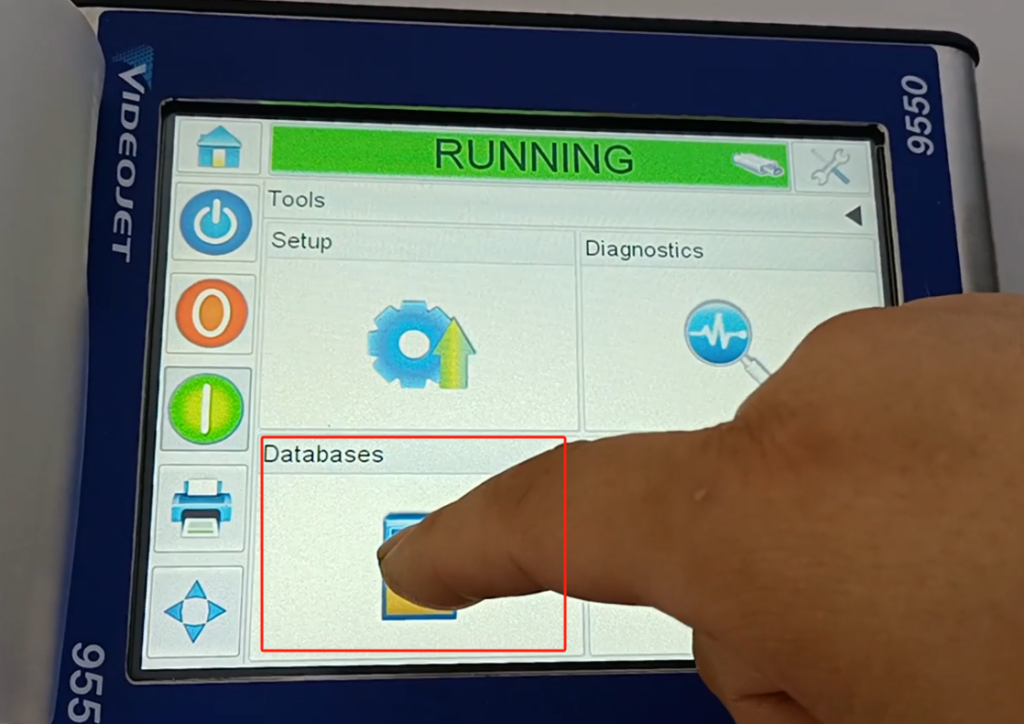
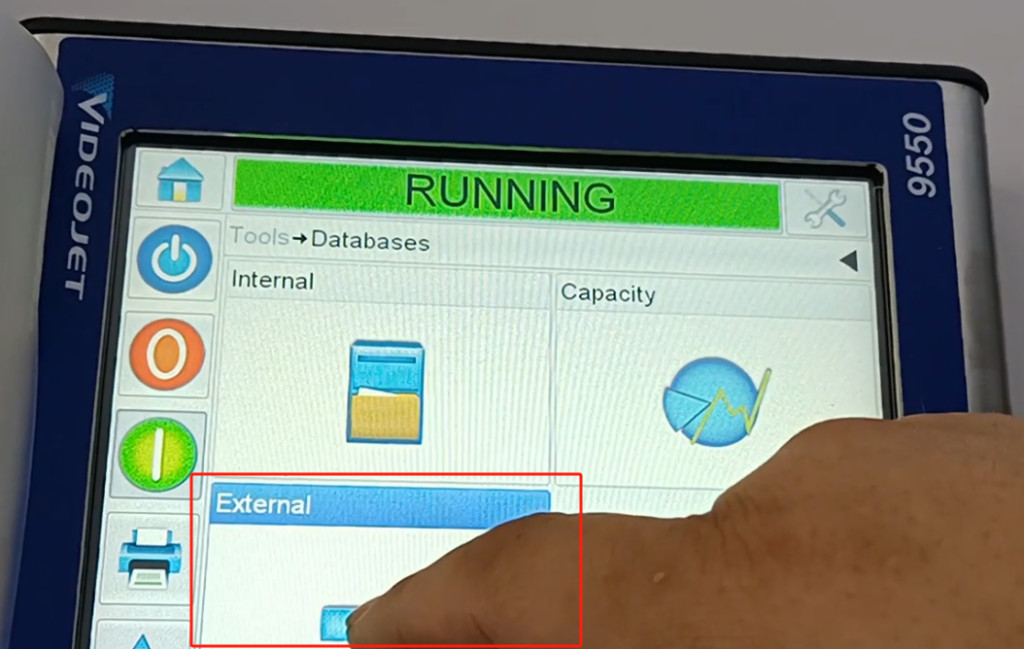
Select it, and then click on this one.
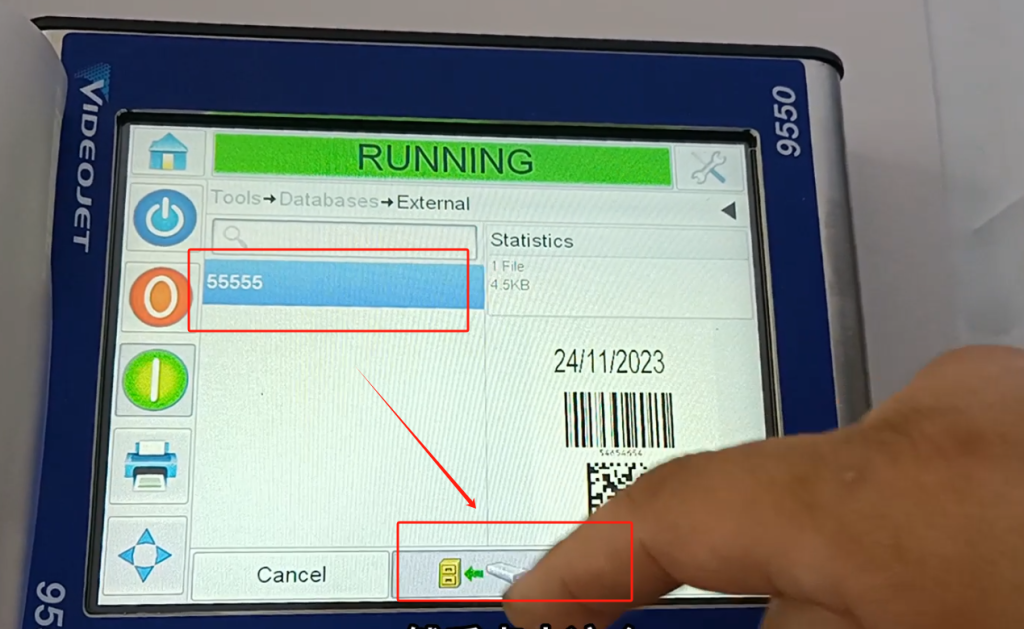
Point yes and OK. Let’s return to the main interface and point JOB.
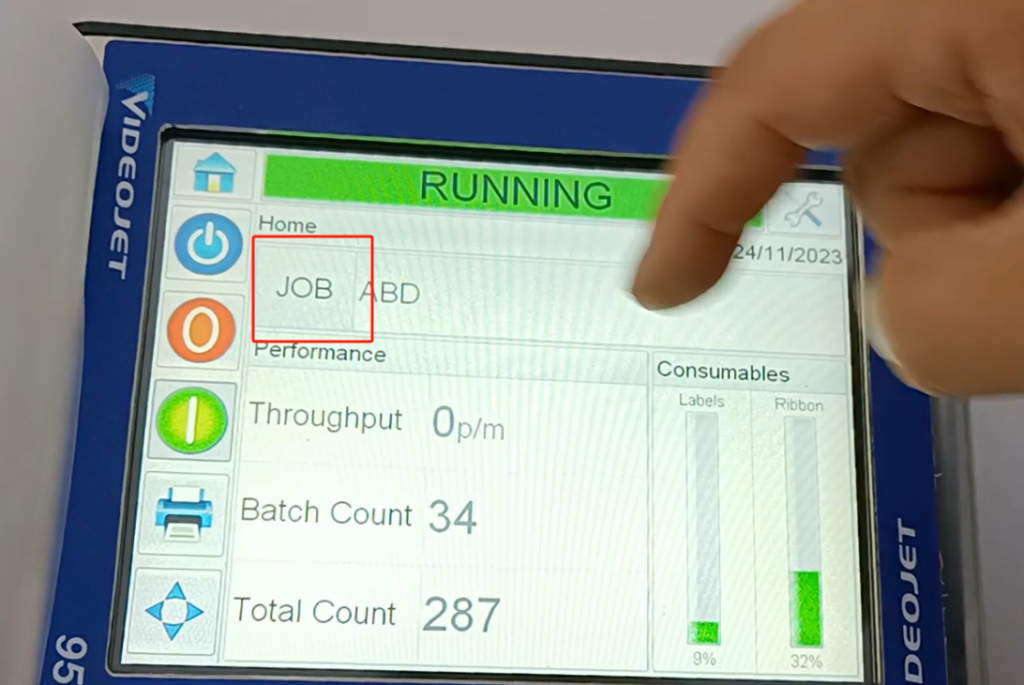
Select the information that we have just imported, point OK. Then click on OK, and we can print this message.
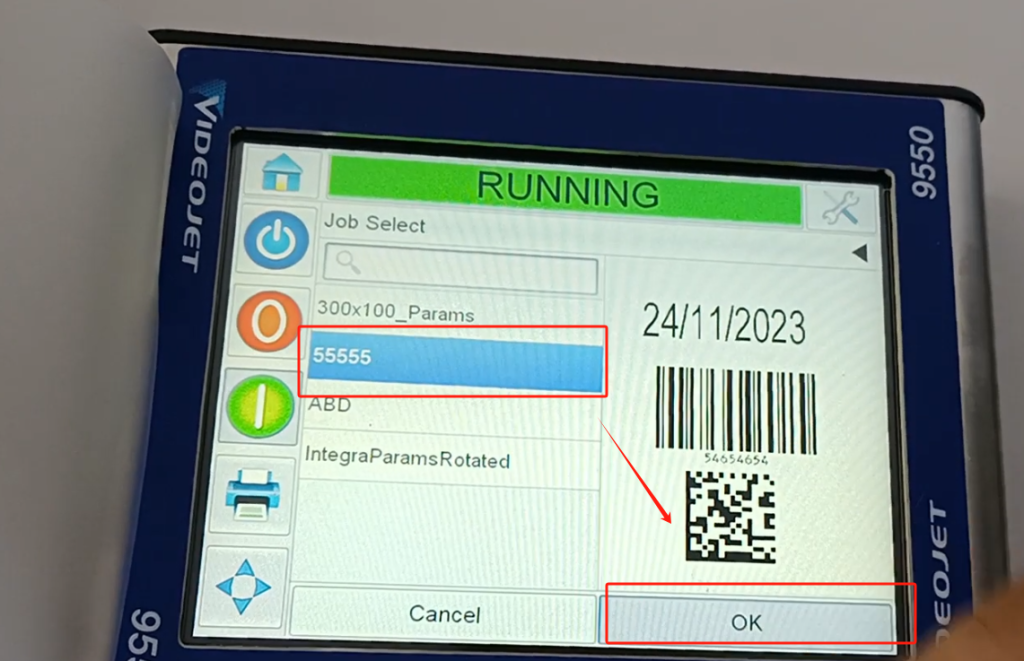
He called the police, which means that we now have too few labels, the supply is too low, we don’t care about him.
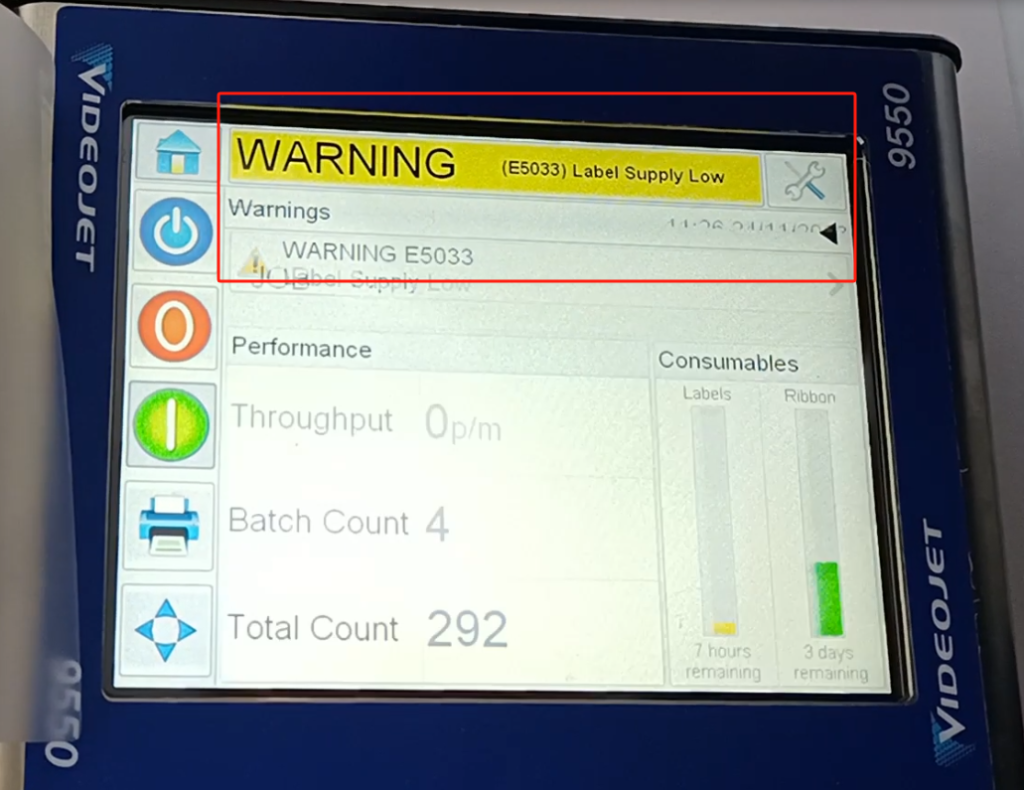
Let’s print it out and take a look
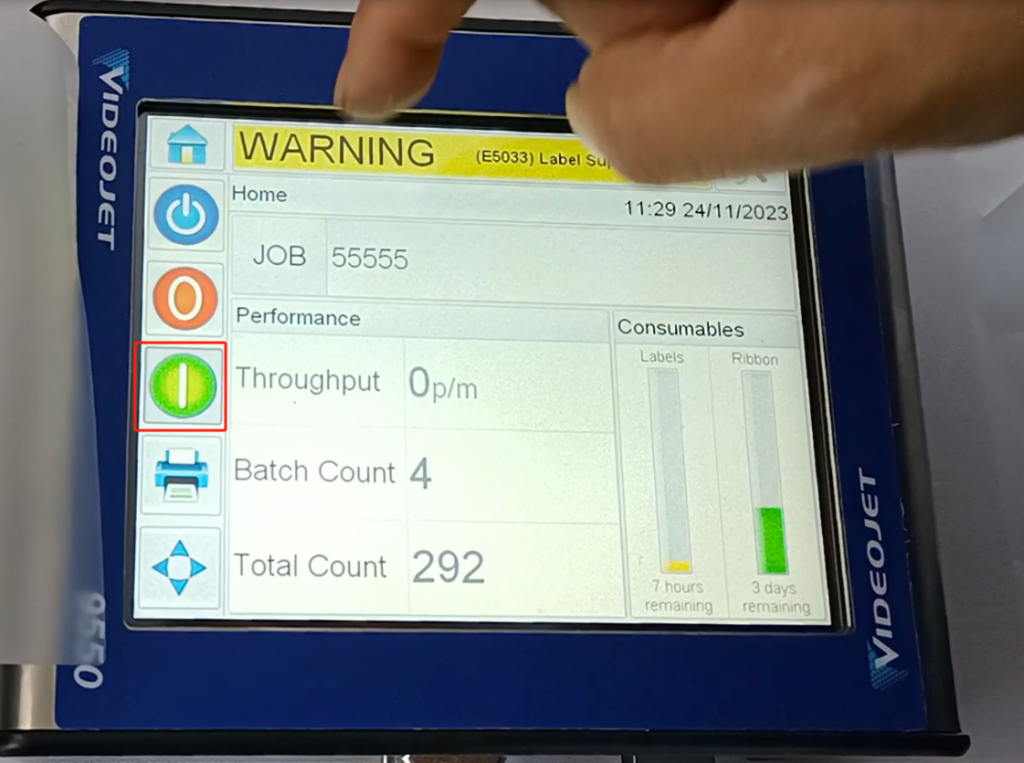
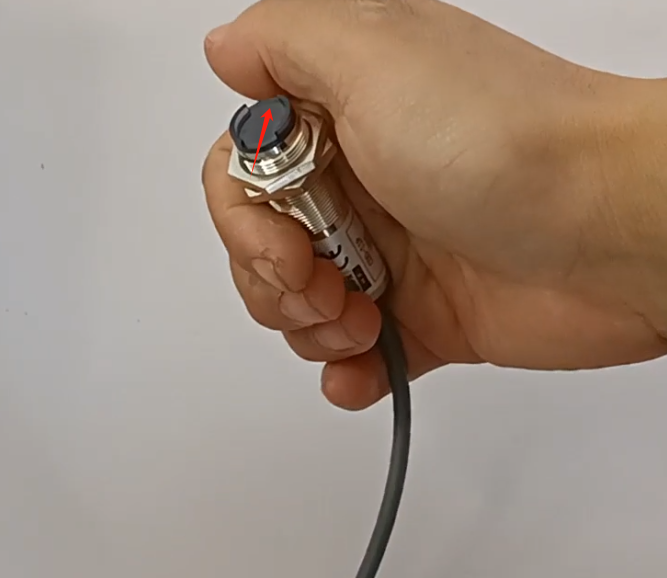
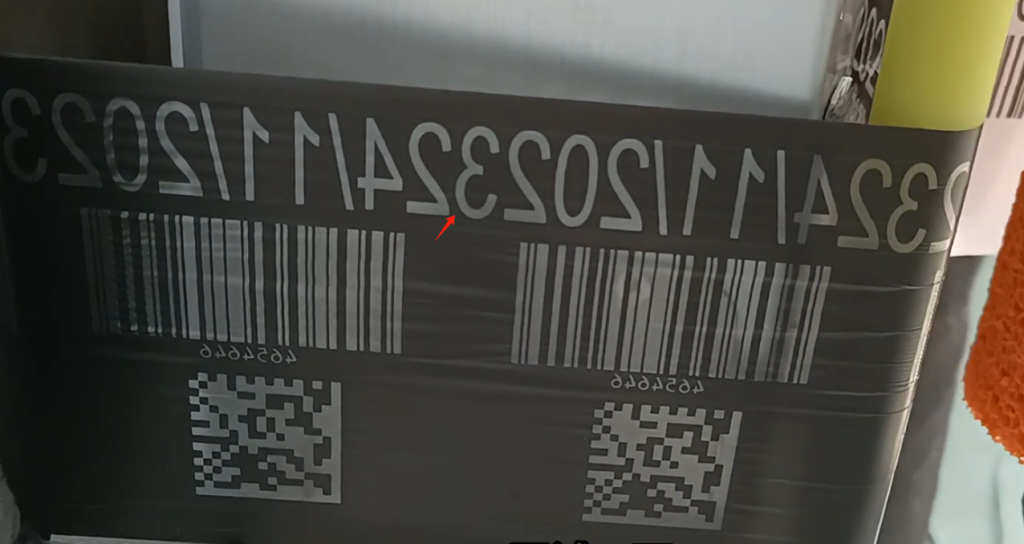
This is the effect
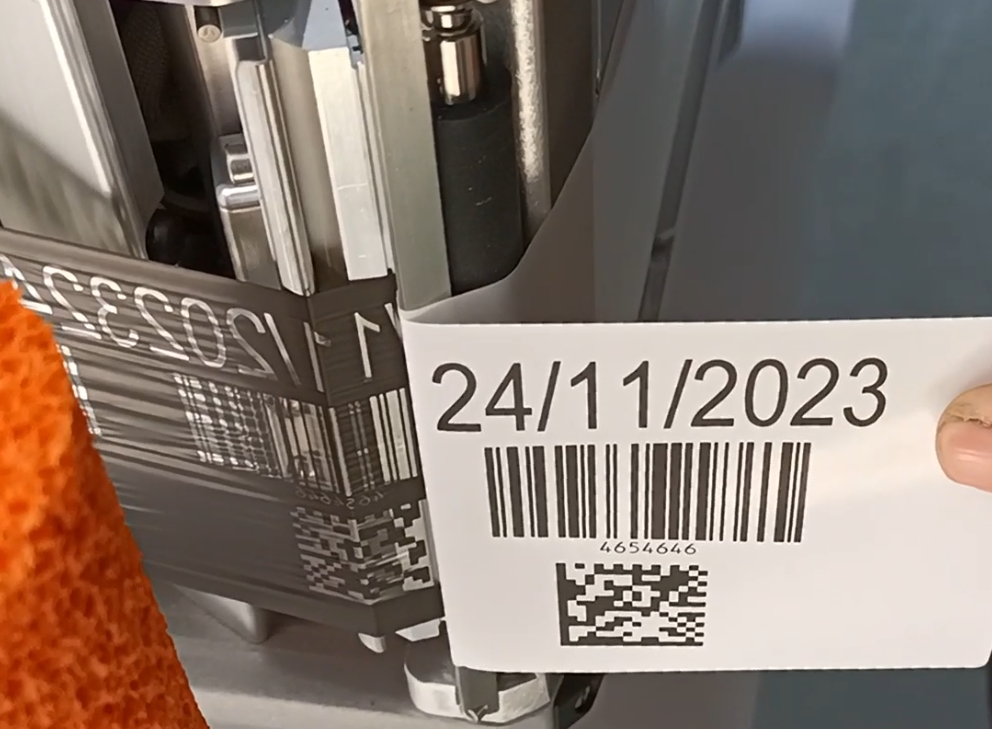
The gap between our information, it is fragmentary, has been done at 0.5 mm, very, very small. Very carbon belt saving. You see our word and word two information, between the word is very small.