Click on the “New Information”.
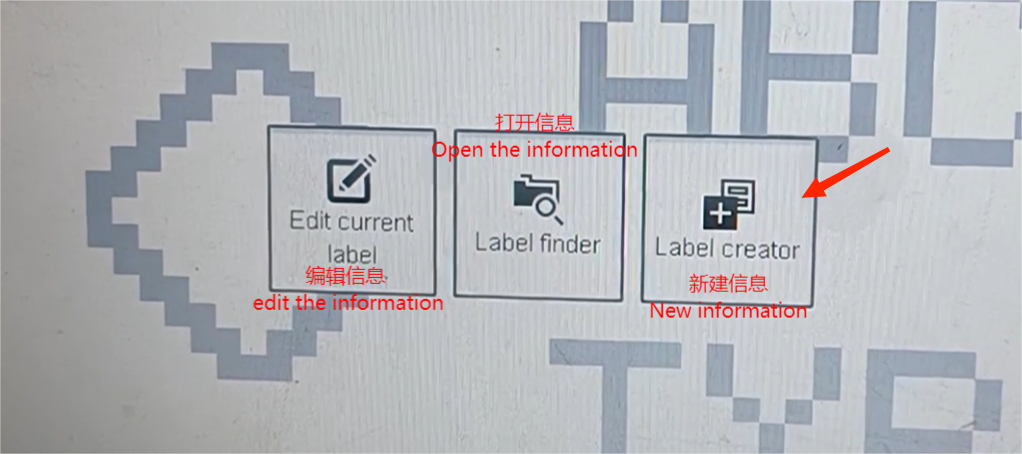
Enter the information name and click on OK. This information name is the 233.
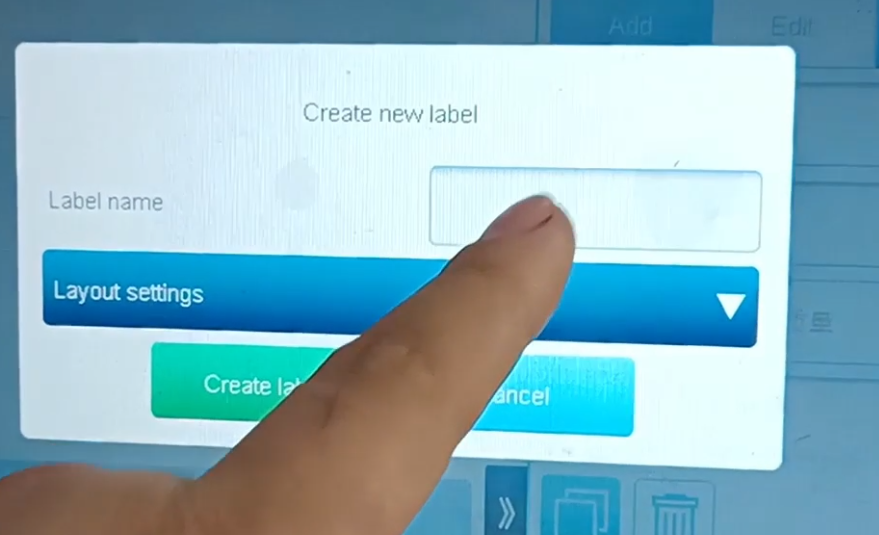
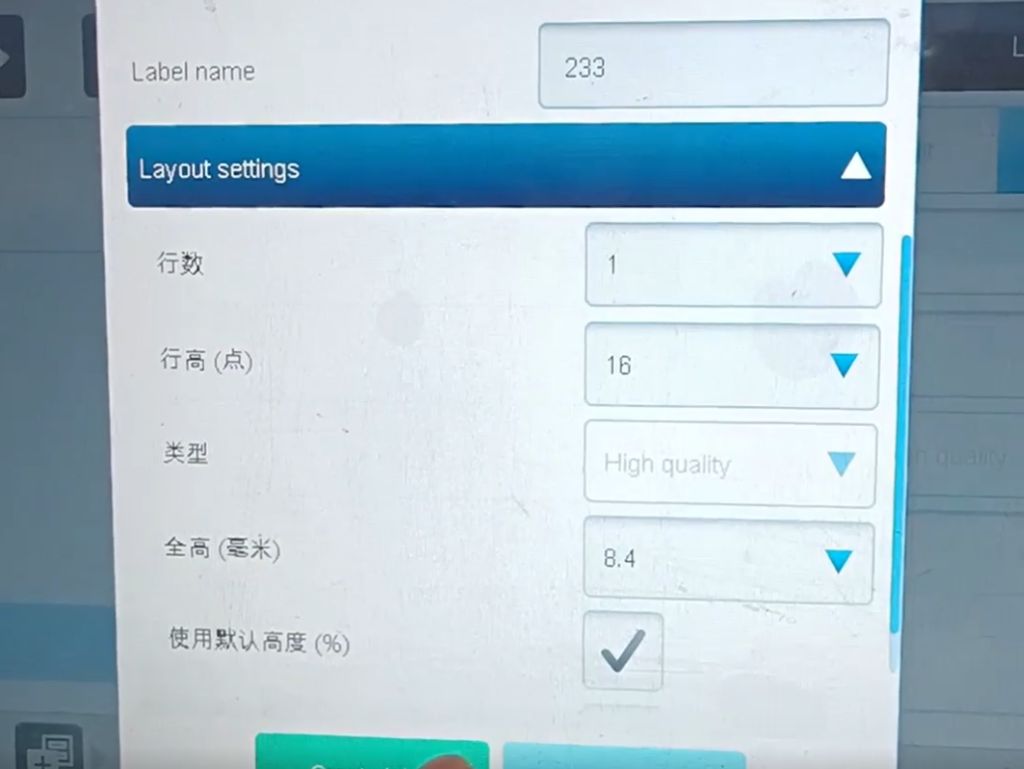
First of all, you should choose the high line, the maximum high line can be 32 points, and the maximum number of lines can be 5 lines. Choose a few lines and it will be divided into several lines. For example, with a line number of 4 and a line height of 7, it is divided into 4 lines of 7 points.
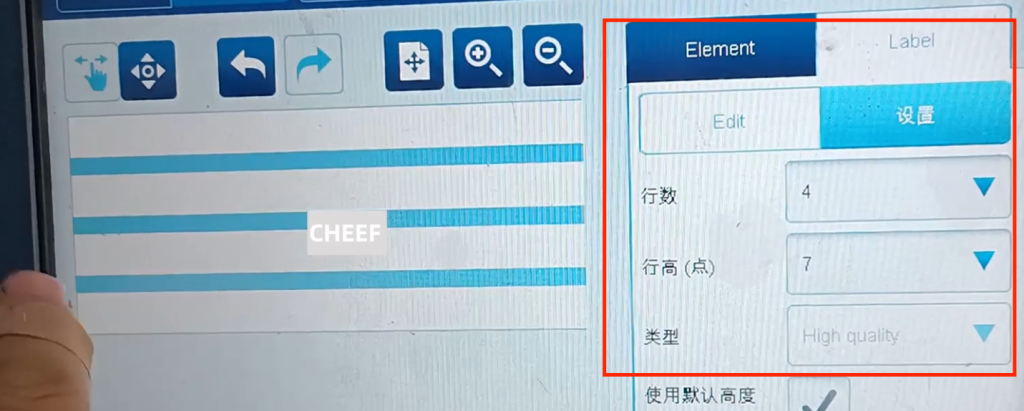
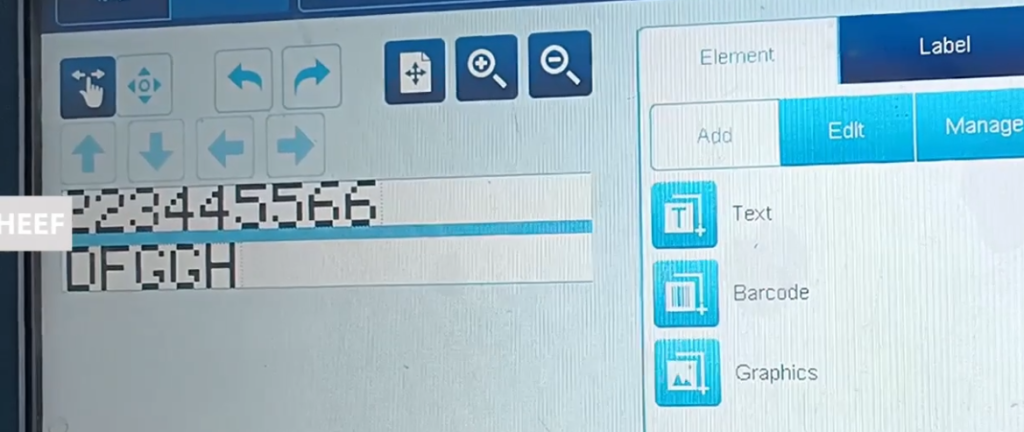
After typing, you can go to here to edit, input the required text, press “OK”, and the information comes out.
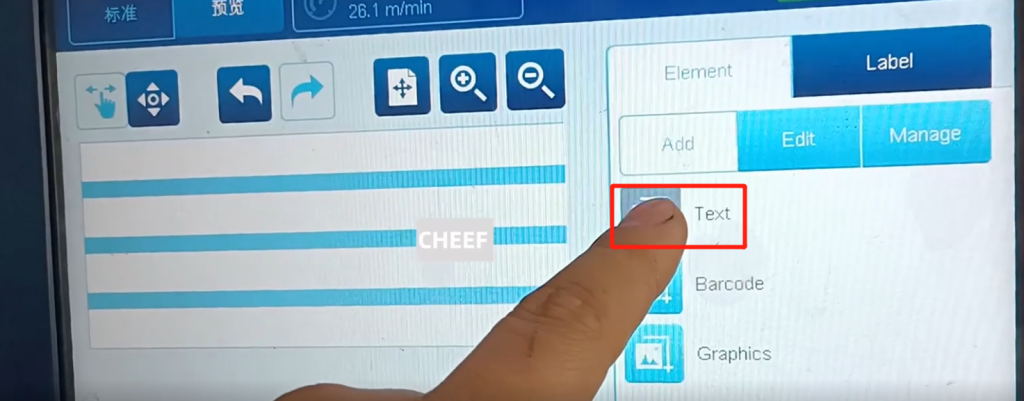
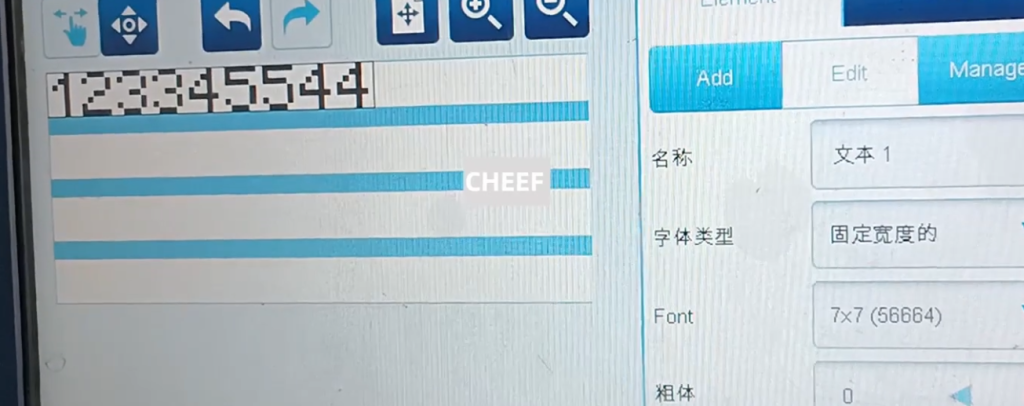
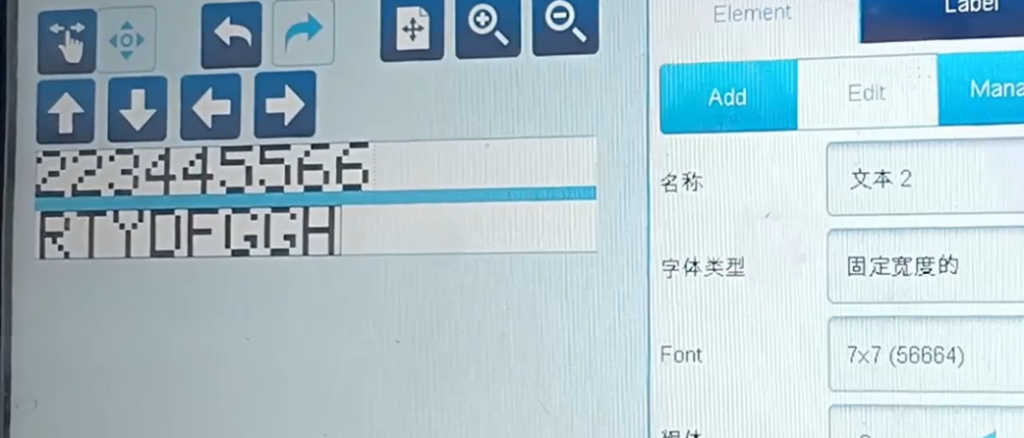
If you want to add more text, click to add, enter the desired text content, click “OK”, pull the text down, and build the second line.
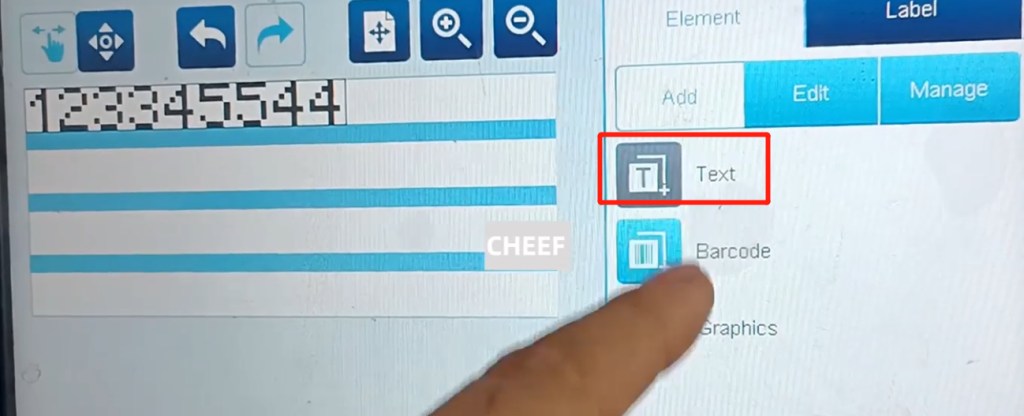
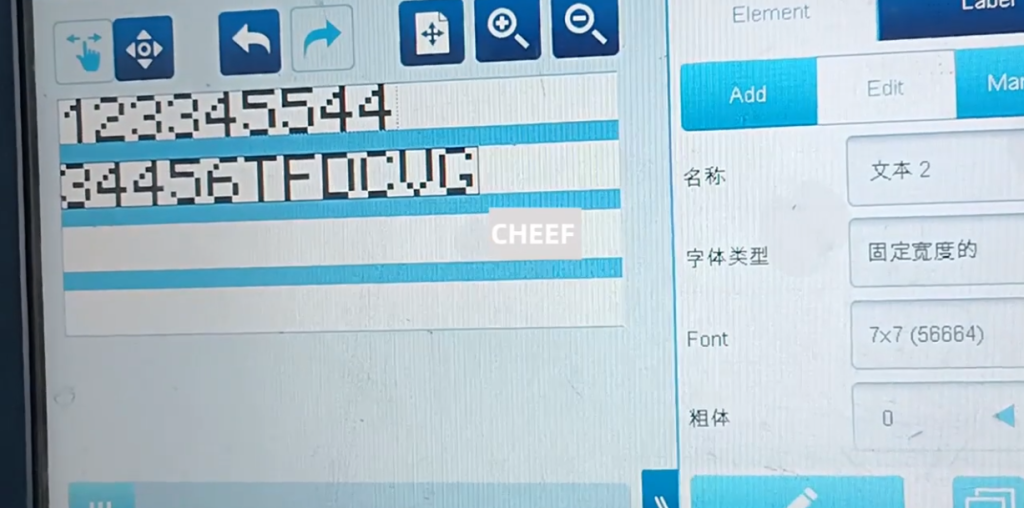
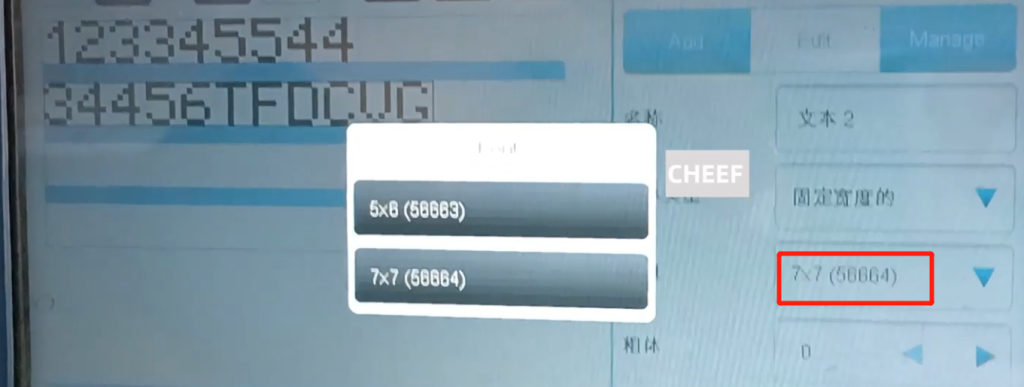
Select each character field, you can choose 7 * 7, or 5 * 6.
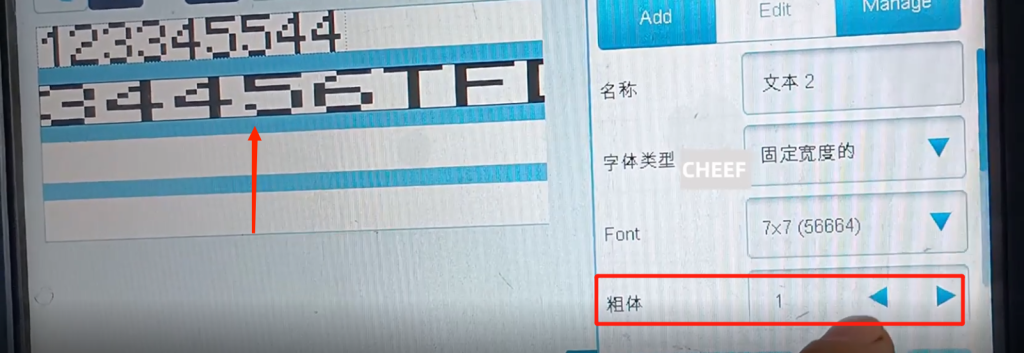
You can select the bold one in this font.
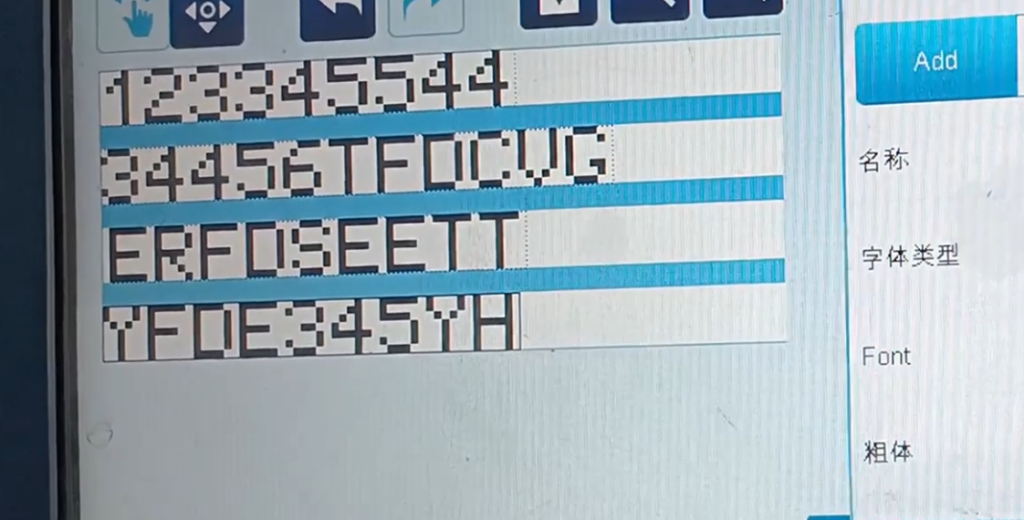
The same is true, up to four lines.
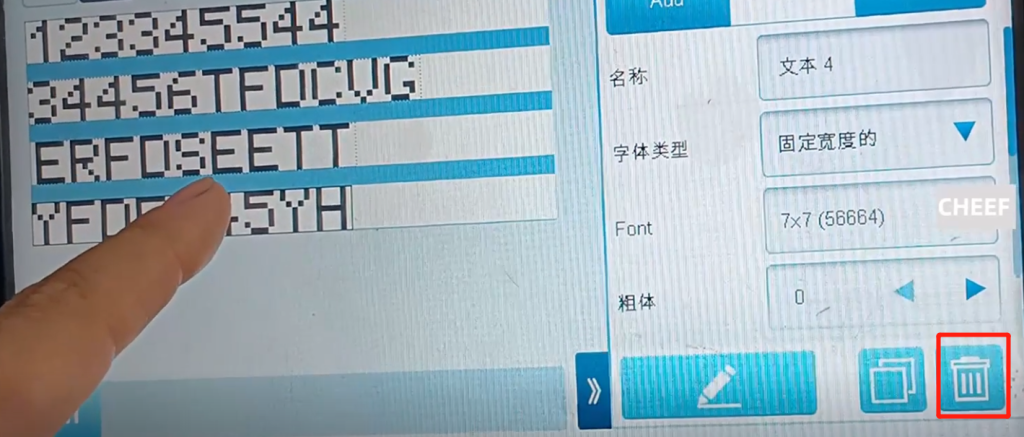
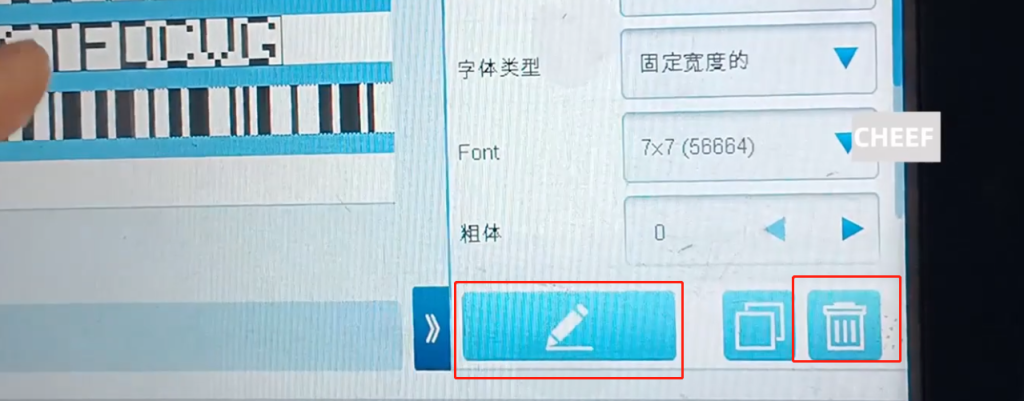
If you want to delete a character field, select the character field to be deleted and click “Delete”.
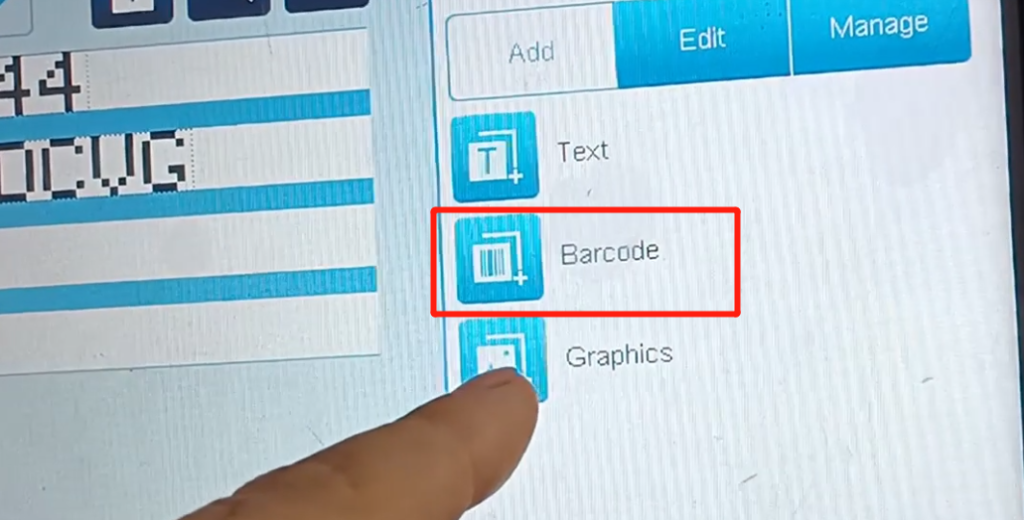
This can add “Barcode”, the default is 128.
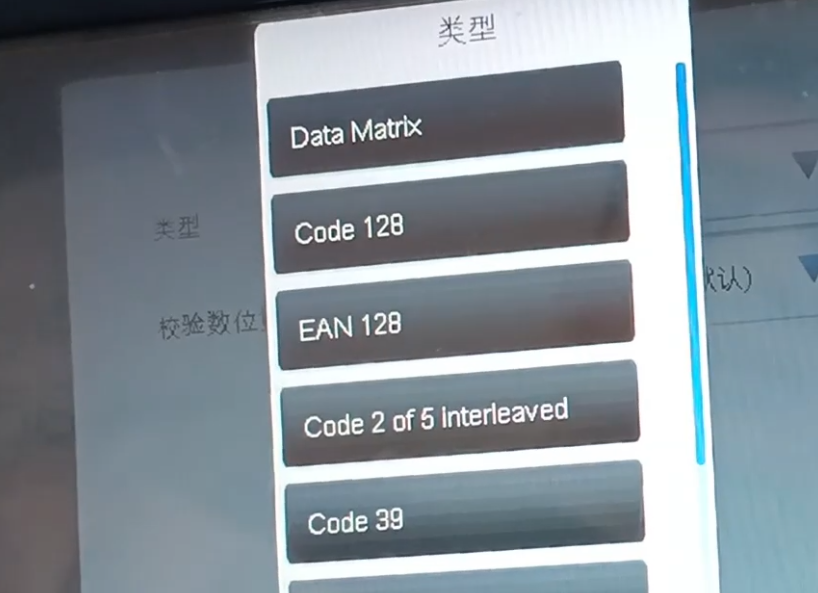
You can choose the type here, after the selection, click “OK”.
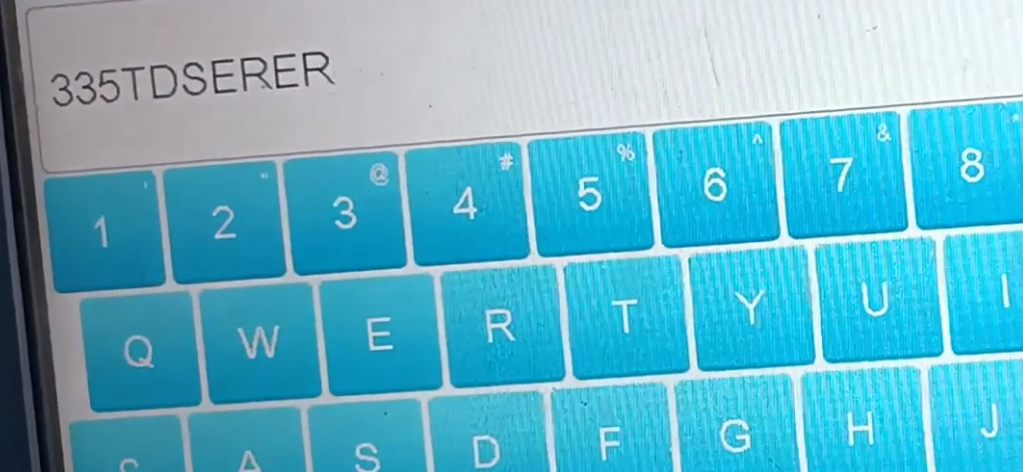
Add a Barcode, click “add”, type in the content, lower down a keyboard, you can select a keyboard, type in the desired text content, click “OK,” and this is built.
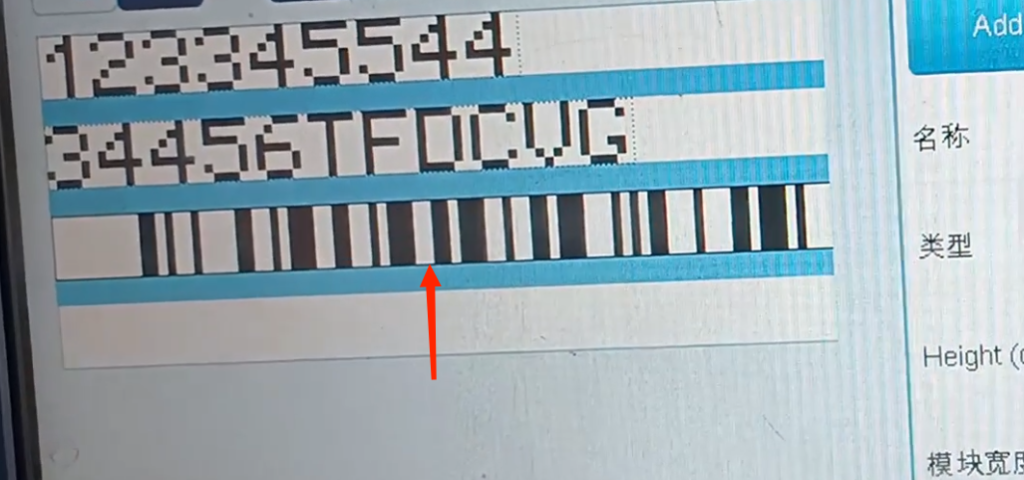
Here you can choose the word height, the word width.
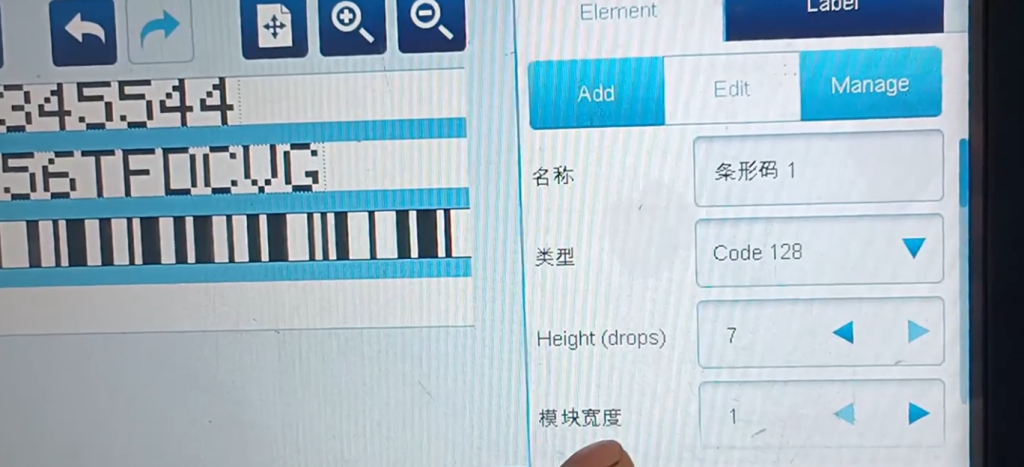
Adding another Barcode is also done in the same way. After editing, you can save it.
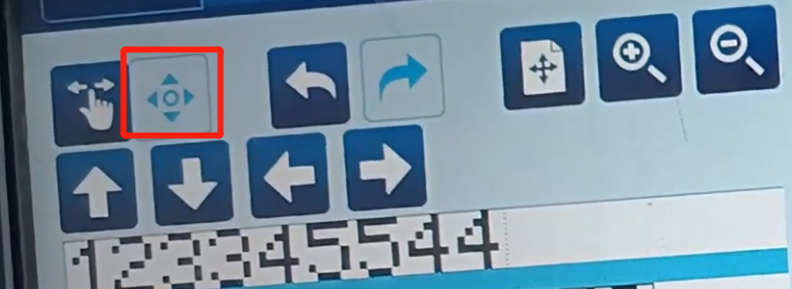
There are several keys here, this is moving, you need to select a character first, you can also drag directly with your hand.
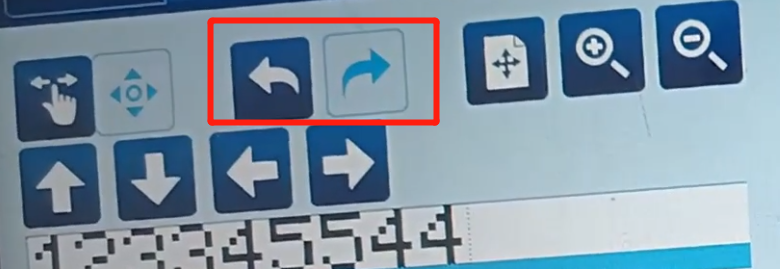
This is the last step, the next step.
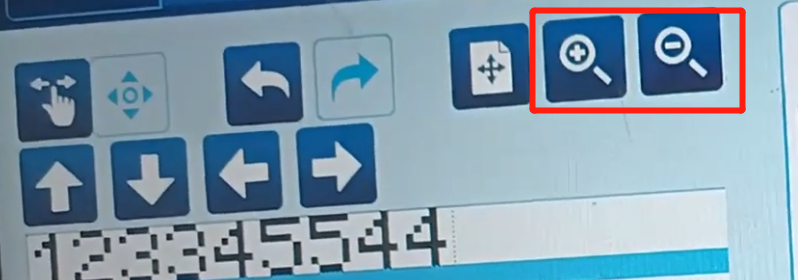
This is to zoom in and out.
There are deletions and edits on here. If you want to re-edit, select the character field, click Edit, you can re-edit this information, edit, and then press OK.
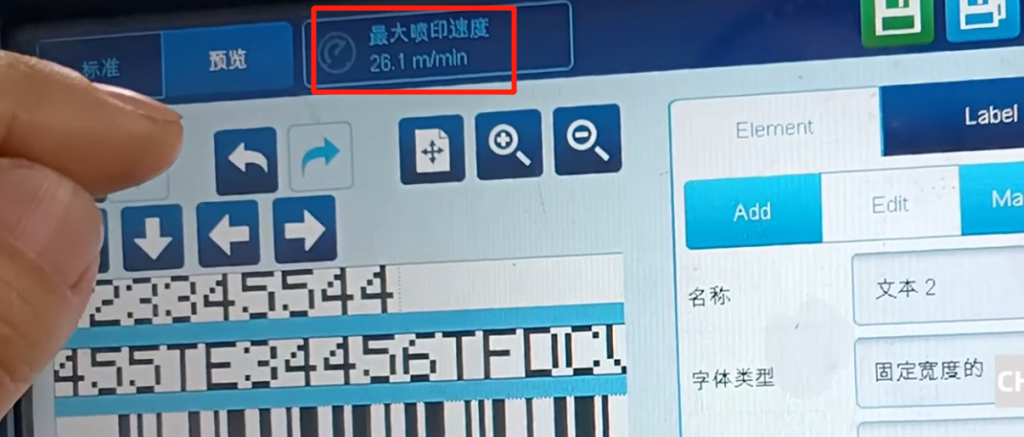
Once all finished, there will be a maximum speed. For printing three lines, the maximum speed is 26.1 meters per minute. When the length of information content and so on change, the maximum speed will change.
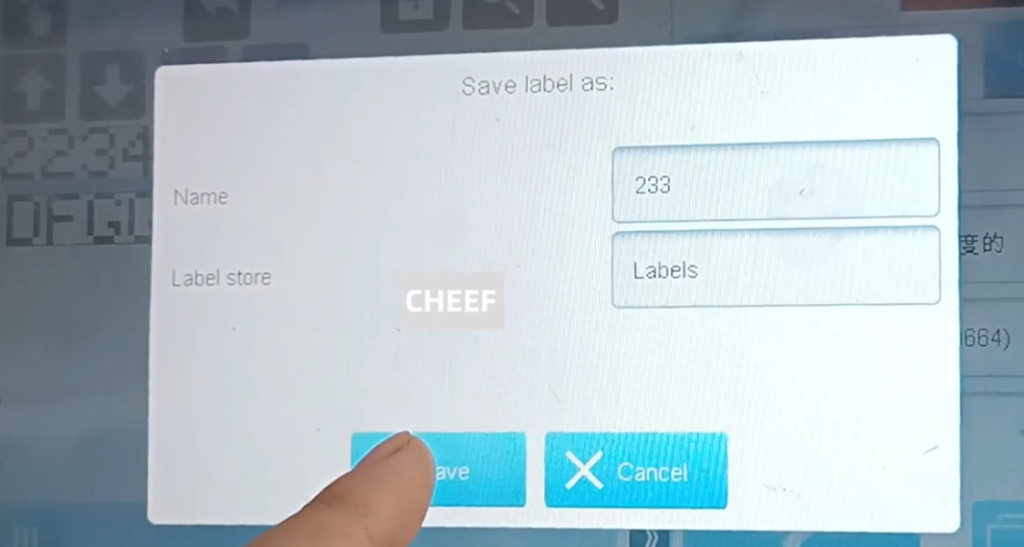
Then casually create some new content, after the increase, there are here to save, save as and print, first of all, just build the “233” information to save.
If you want to print this message, click “Output Print”, go back to the main interface, this content is the message just compiled, you can print.
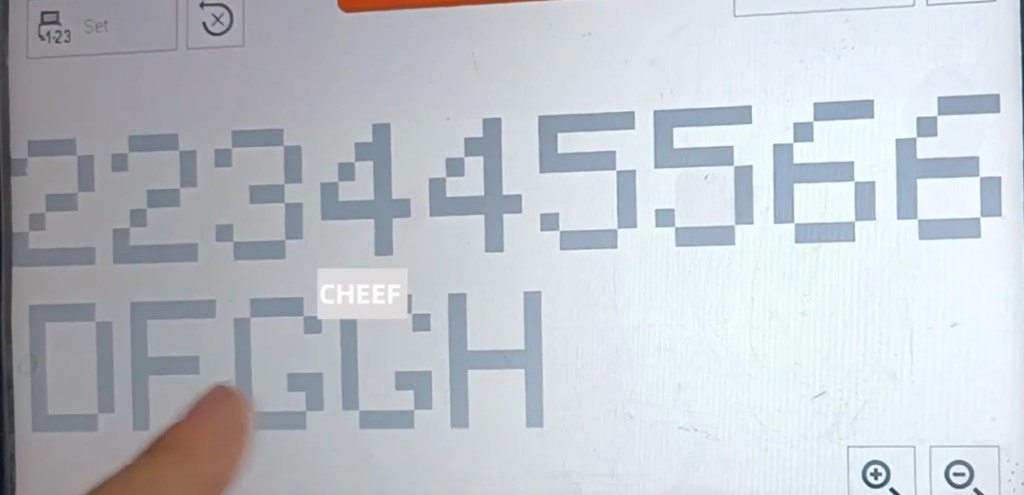
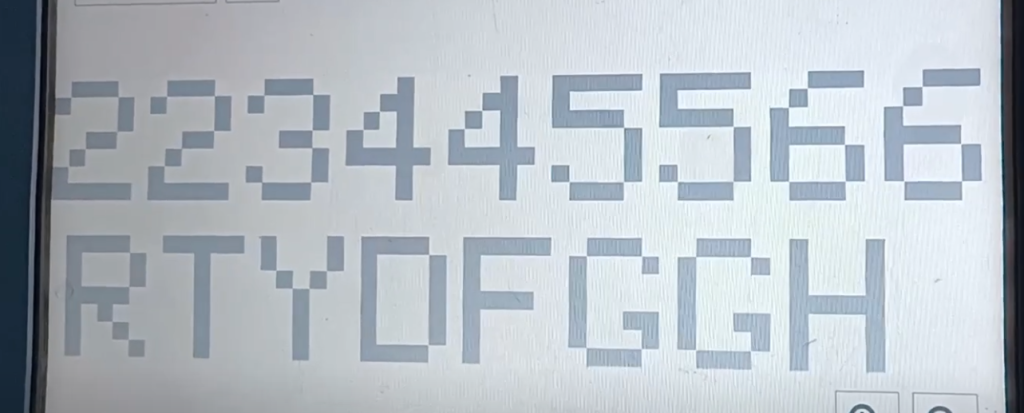
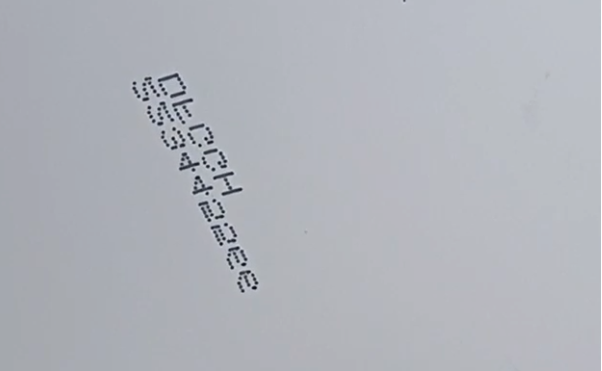
Look at the print effect.
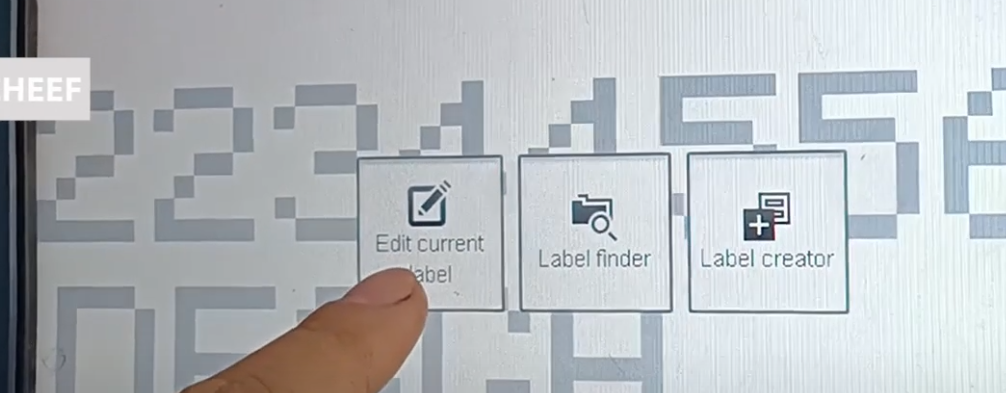
If you want to edit the current message, click the key and jump to the message. Just modify, after editing point output printing or save first. Back to the home page, it becomes the modified message.