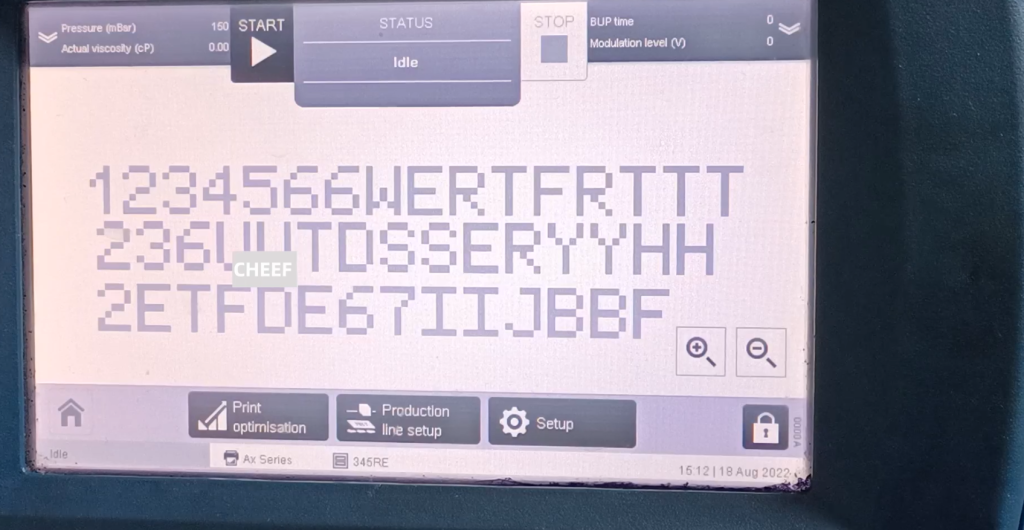
In the main interface, here is to edit the existing information:
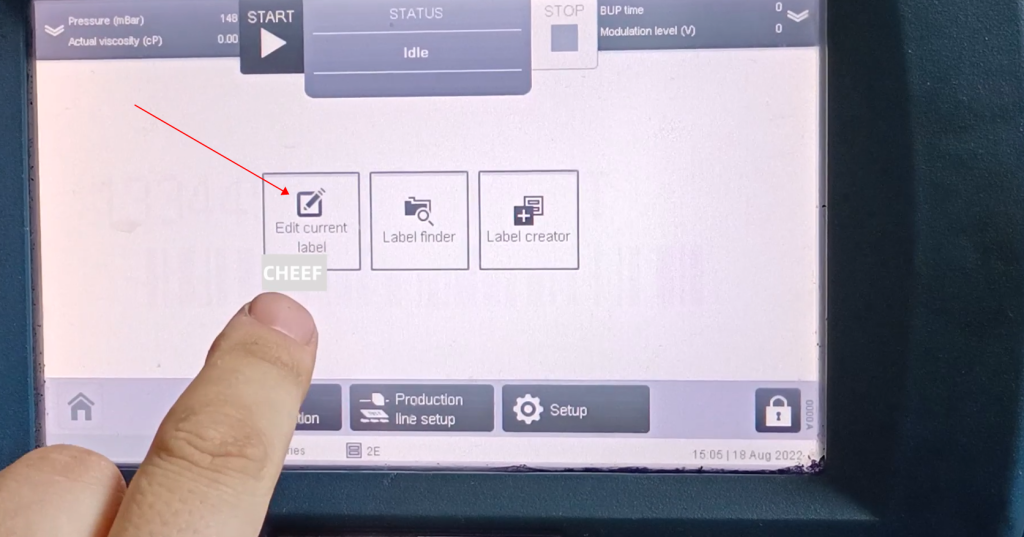
Select to re-edit the current information:
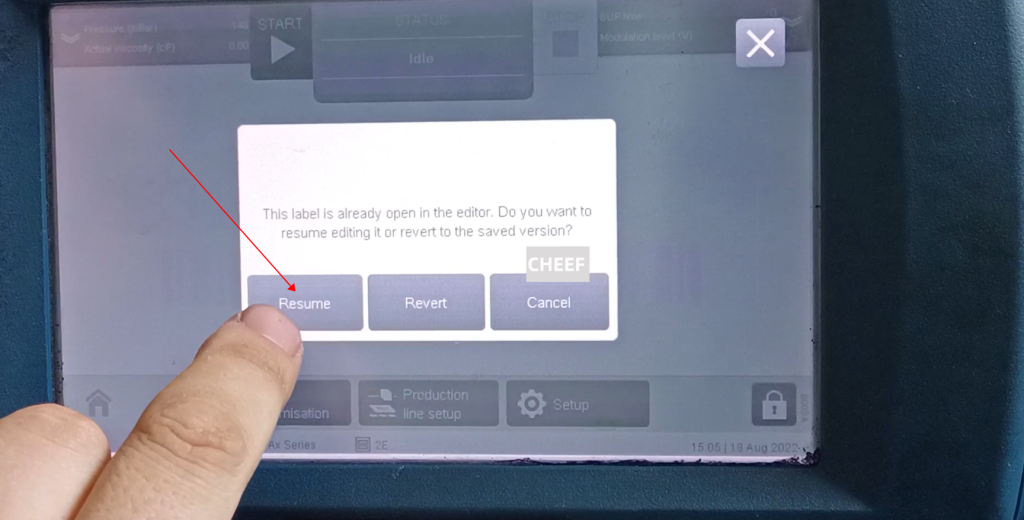
This is finding information, that is, we can find it in it, a piece of information that has been built:
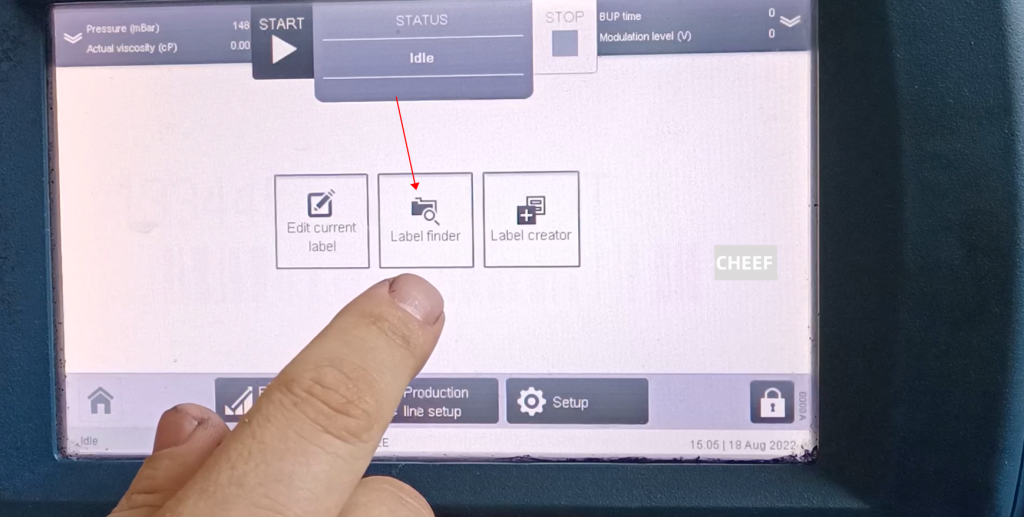
This is the information created before, select a message, click the print button, it will start printing:
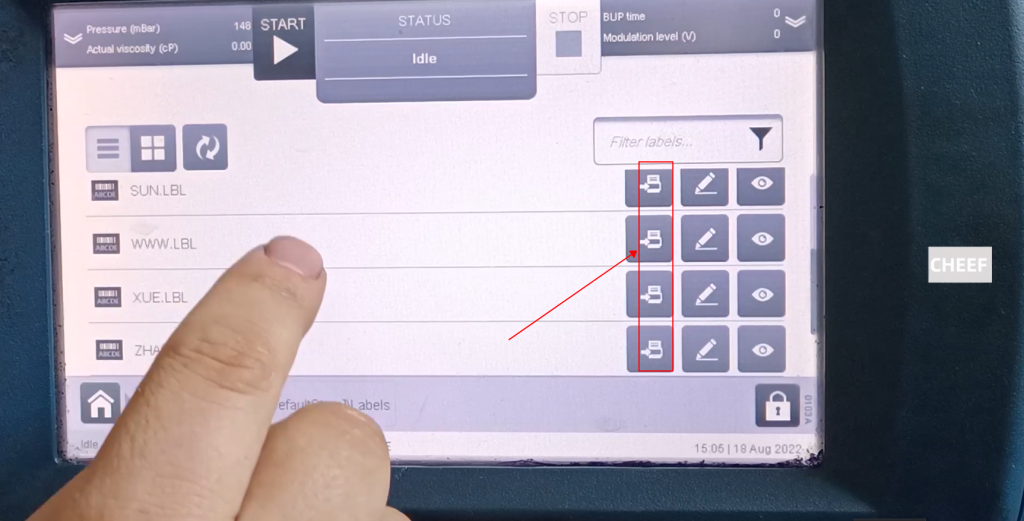
Take a look at the new information:
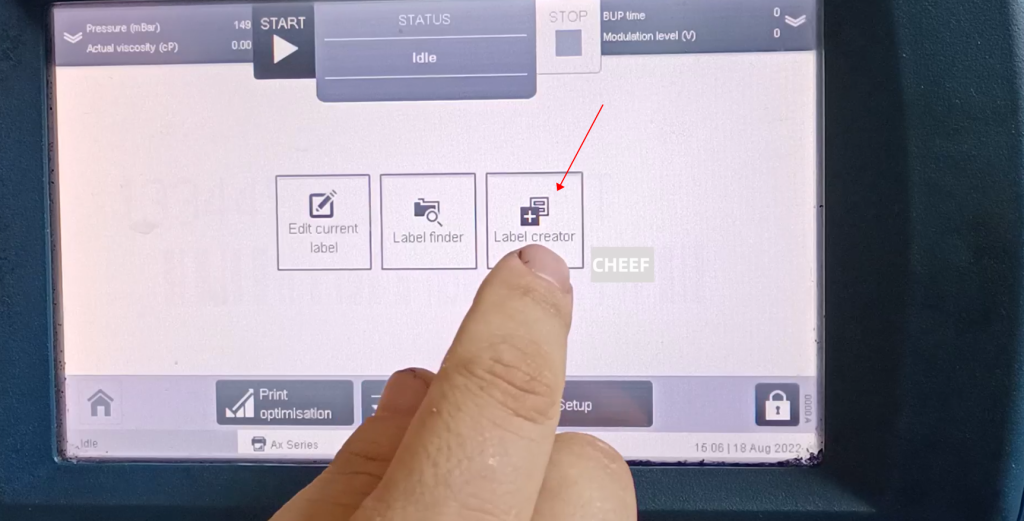
create a new message:
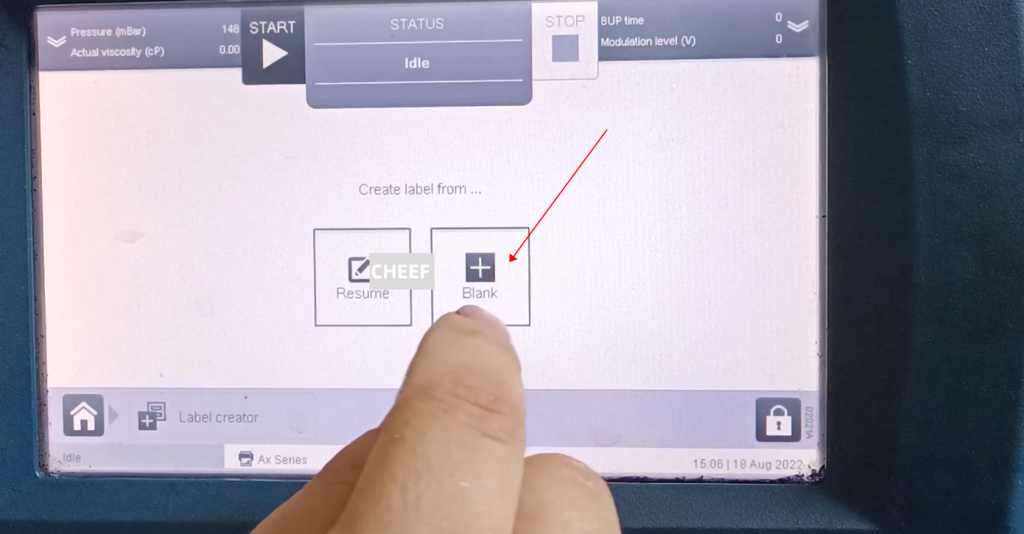
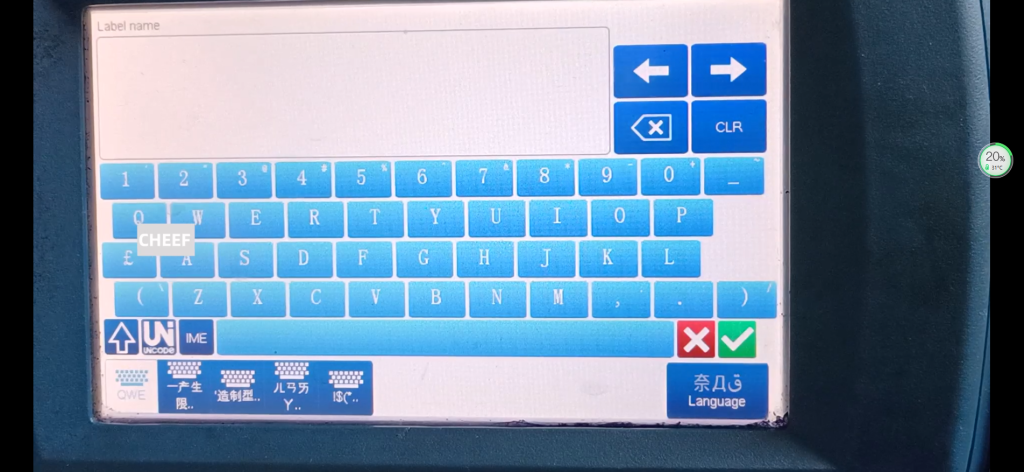
Give this message a name, then press OK to start editing in the empty text box:
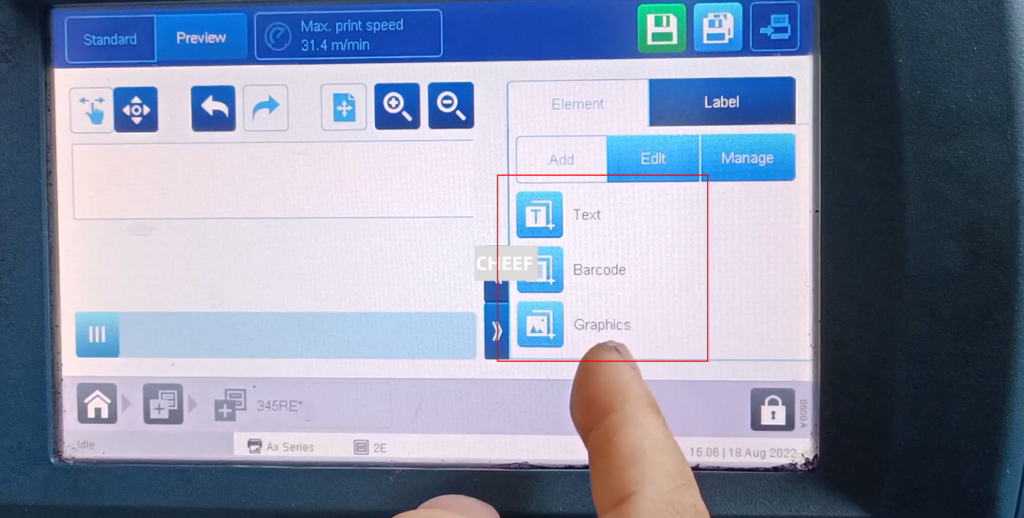
Here you can see that there are texts, barcodes, and patterns, which can be inserted and edited:
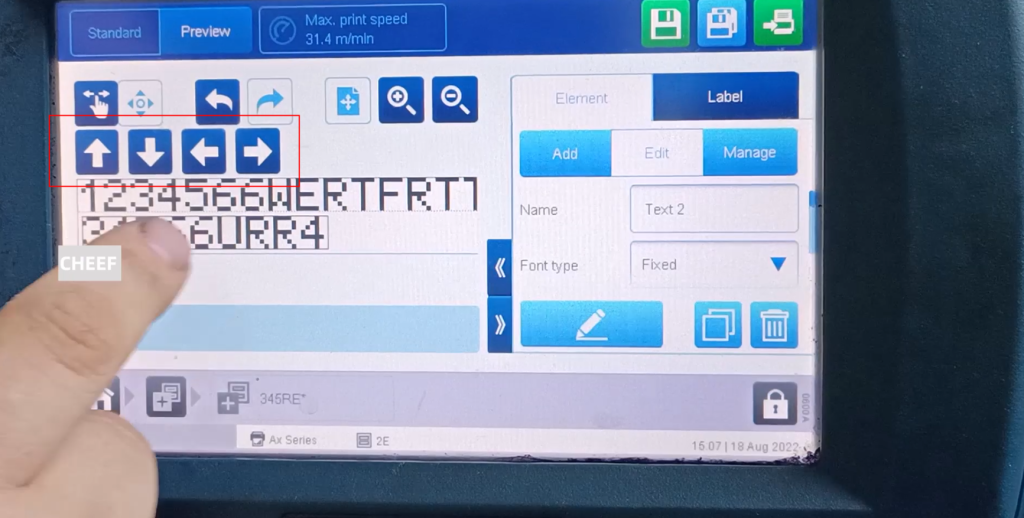
The information can be moved by pressing the up, down, left and right buttons, or it can be directly dragged by hand:
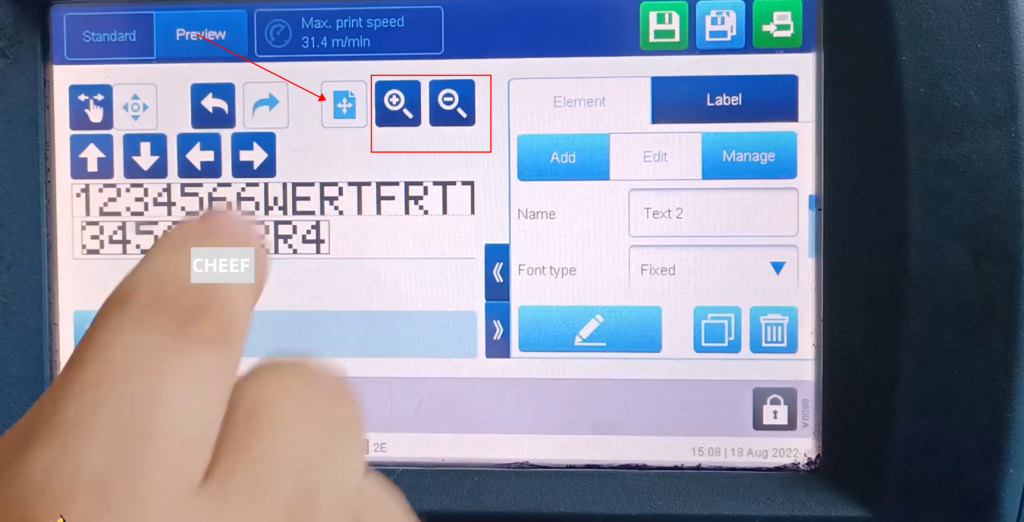
There is zoom in and zoom out, if it is very large, if you want to change back to its original area, just click on the panorama, and you can see all the information:
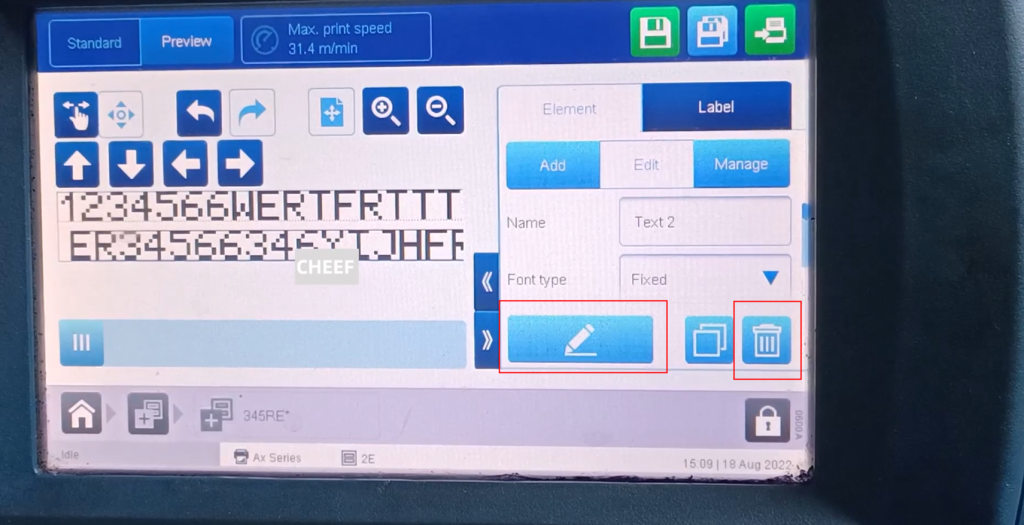
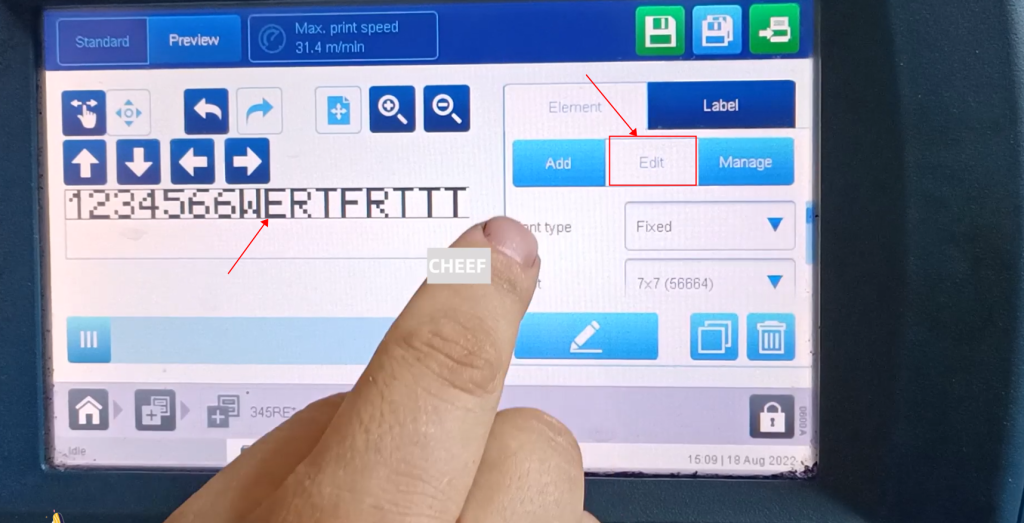
If you want to modify one of the multiple pieces of information, you can select it and click Edit to modify it. To delete this field, select it and click delete:
选Select a message, then choose font size, height, etc.:
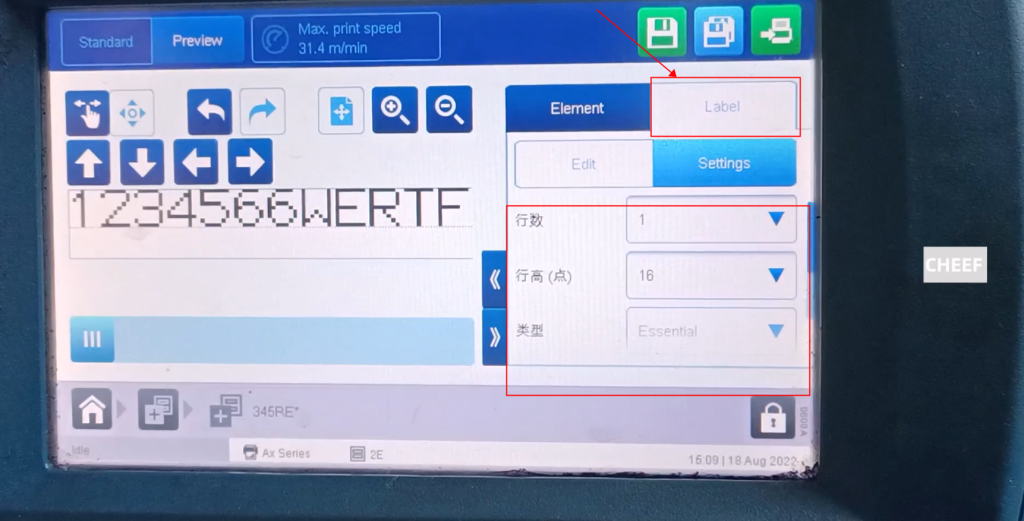
Then we can adjust the row here and set the height of the overall text box:
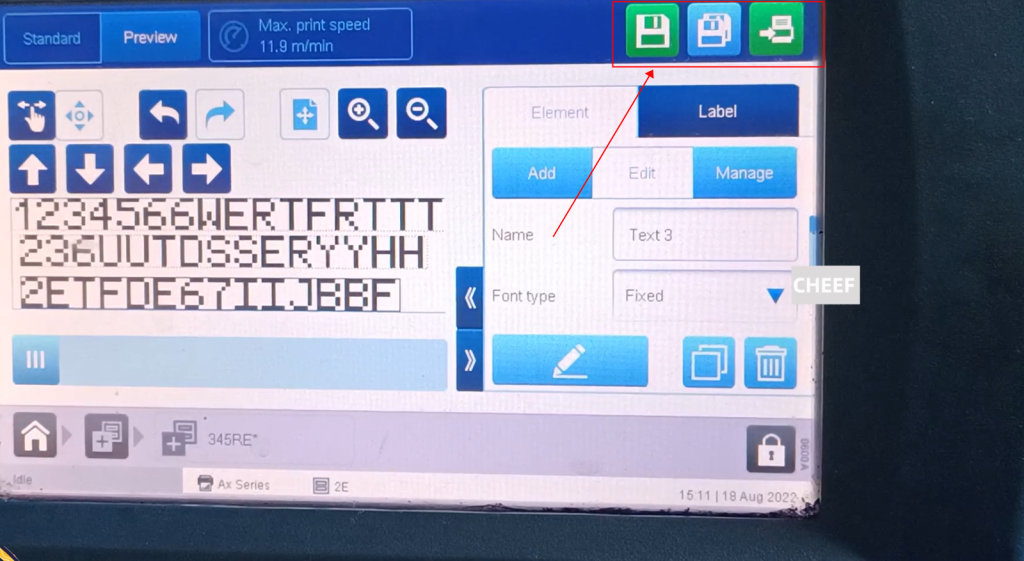
After editing, the three buttons in the upper right corner from left to right are save, save as, output and print, select the desired option; click save, the information will be saved. If you want to print this message, select Click Print and then OK, and the output will be printed:
Go back to the main page and click on the blank space:
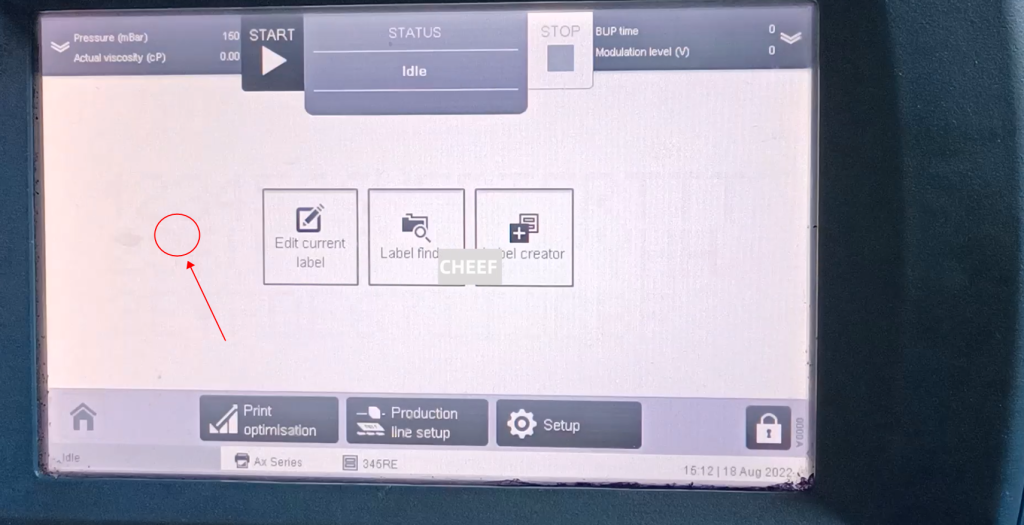
This is the information we just compiled: