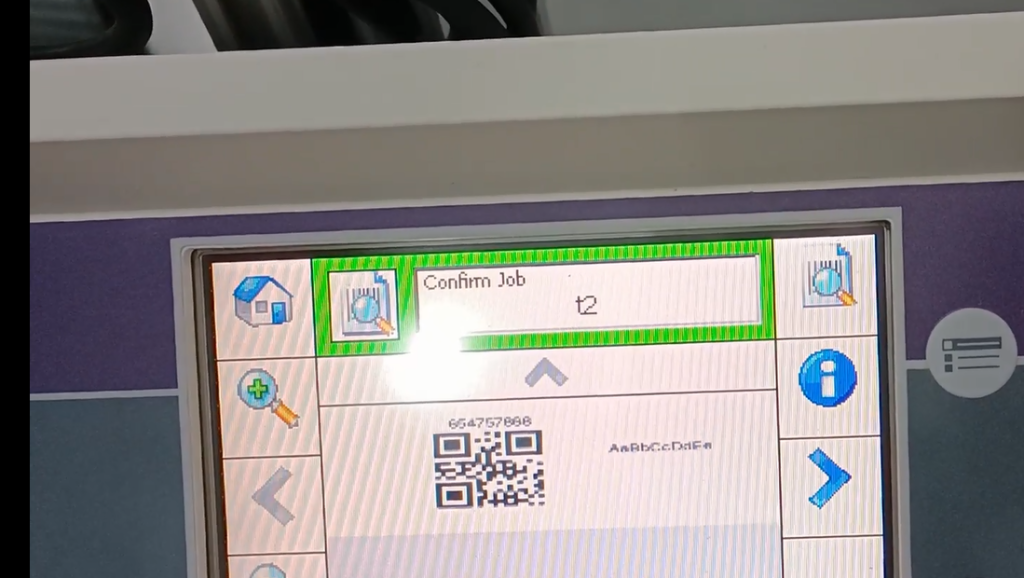
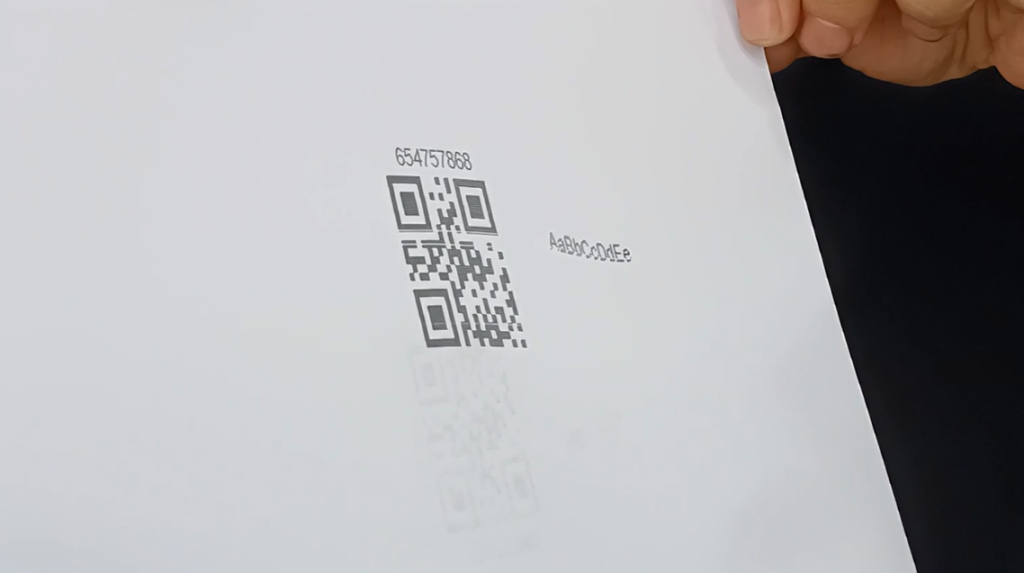
We need to open this software

Let’s open the editing software

Then we create a new one and click on ‘New’
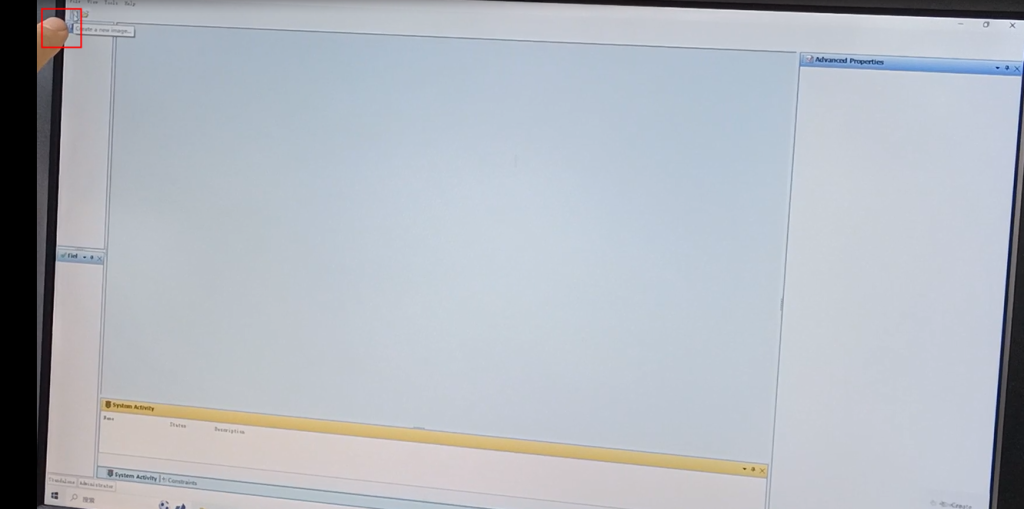
Then select the type of machine we want to edit, 5800 machine, and we will choose,

Then click OK

Let’s take a look at this one on the right, and change the nozzle on the right. Because we only have one nozzle,Let’s change this 2 and also change it to 1. If it’s two nozzles, let’s not change this one.
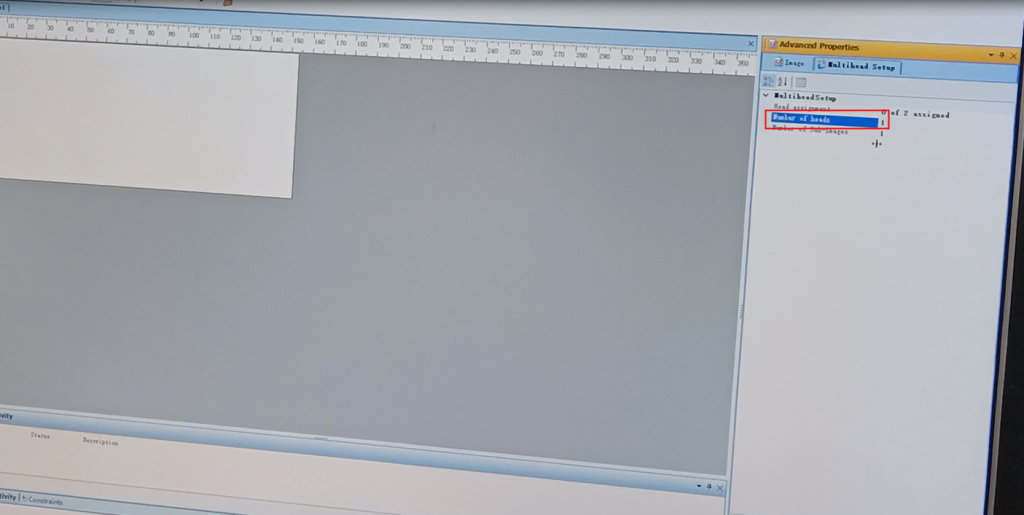
We also need to make some changes here. Click on the button at the back of this side

And then we’ll make a tick
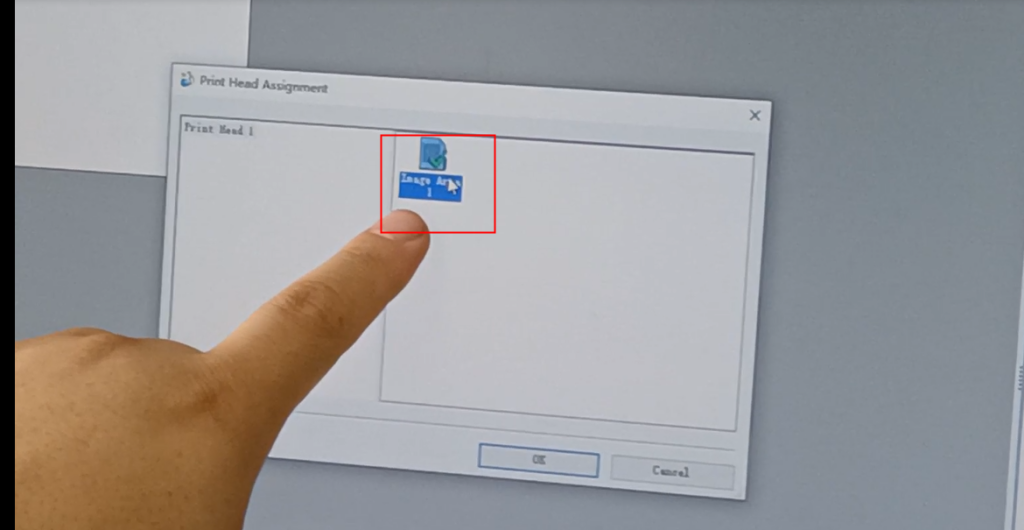
Then click OK

We have already made changes here

After making the changes, let’s name it and save it as. Let’s click on it, and there is a save as on this side,

Let’s give it a name, and then we’ll save it and cover it

Now we can edit the content

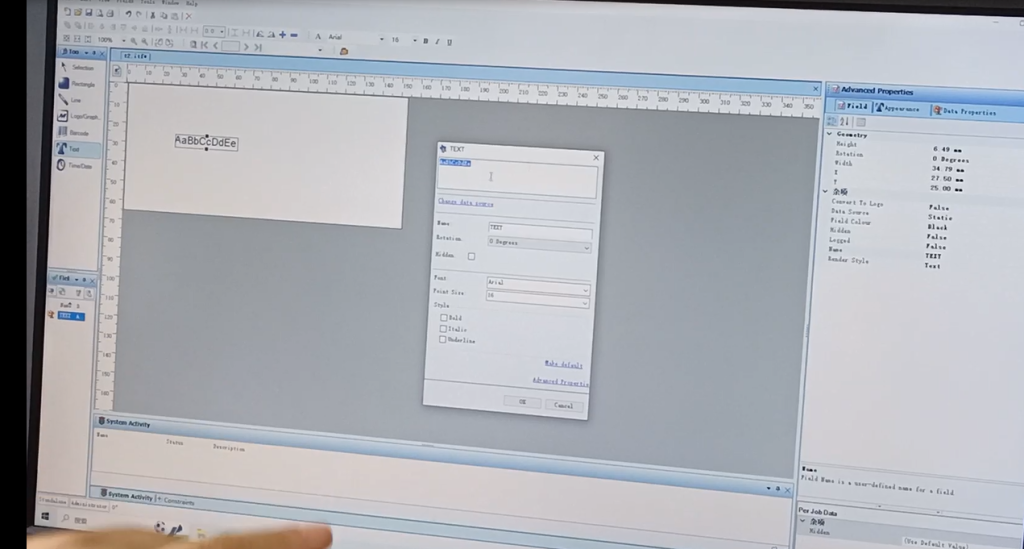
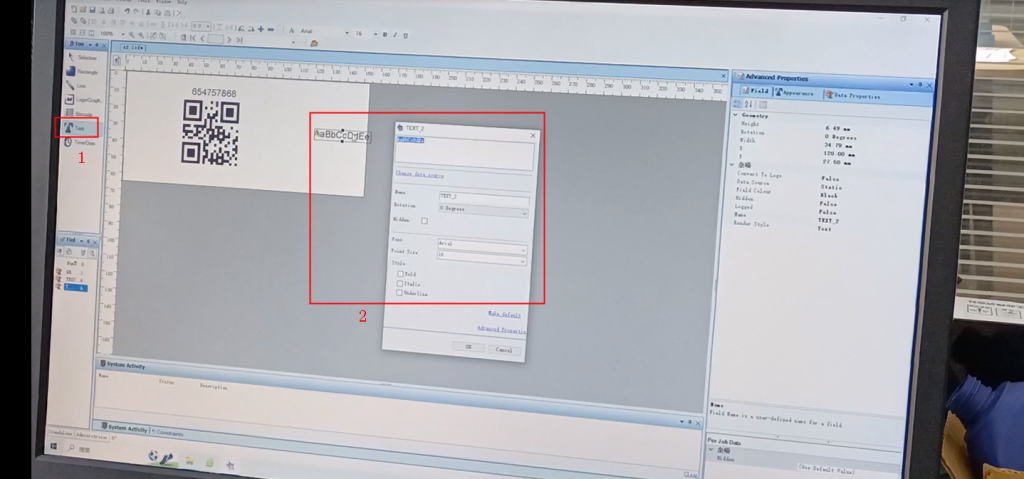
Keyboard can directly input
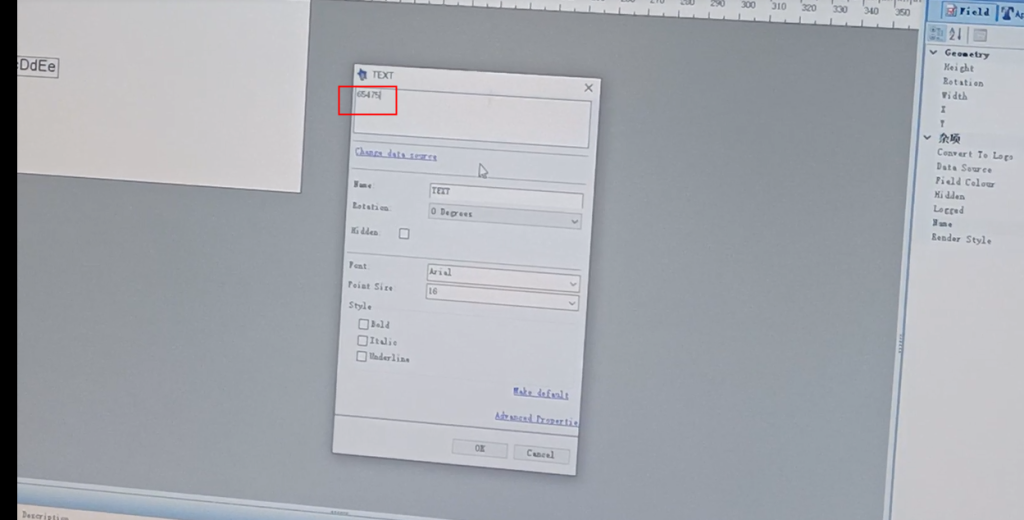
Font can be selected

And the size here can also be chosen

There are bold, underlined, and so on here, which can be checked here

After we select it, just click OK

Then we can drag the position and move it with the mouse

And the code number is also the same. Let’s check and click on the blank space

And then one content of this code number

You can choose its type here, there are many types to choose from,

Choose what we need
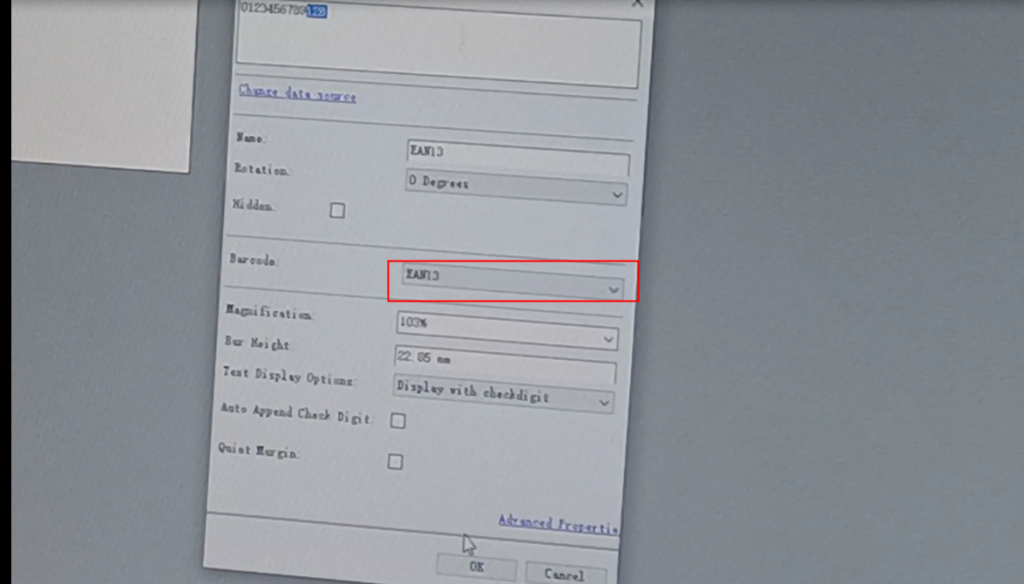
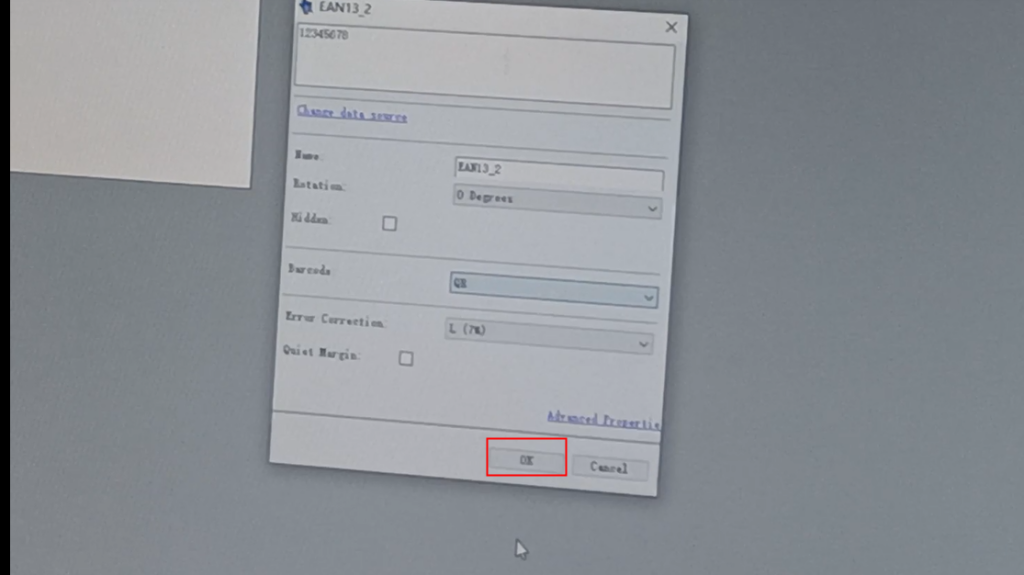
Then click OK

Click OK, and then we’ll have this code built

To make changes, we need to double click

You can freely input its content

And then you can also change it to a QR code here
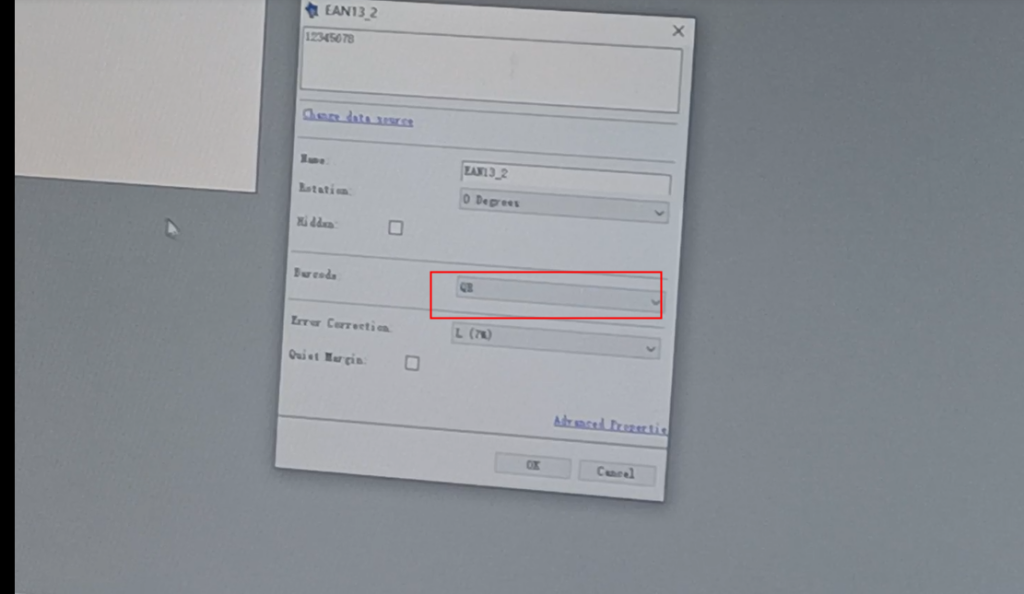
Confirm this QR code
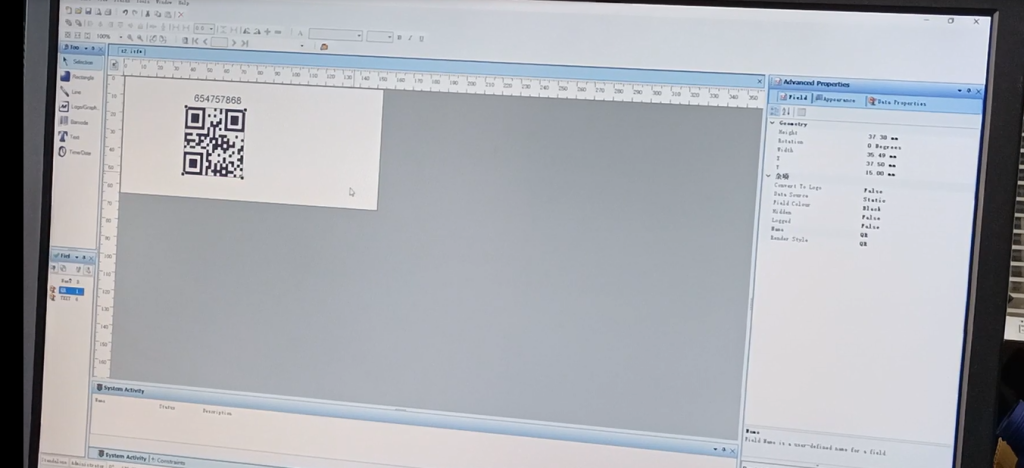
Then, if we are creating multiple points, we can directly type a few lines as needed and edit the information,
After compiling this information, we will download it, click on this file, and then click on this

We choose 5800
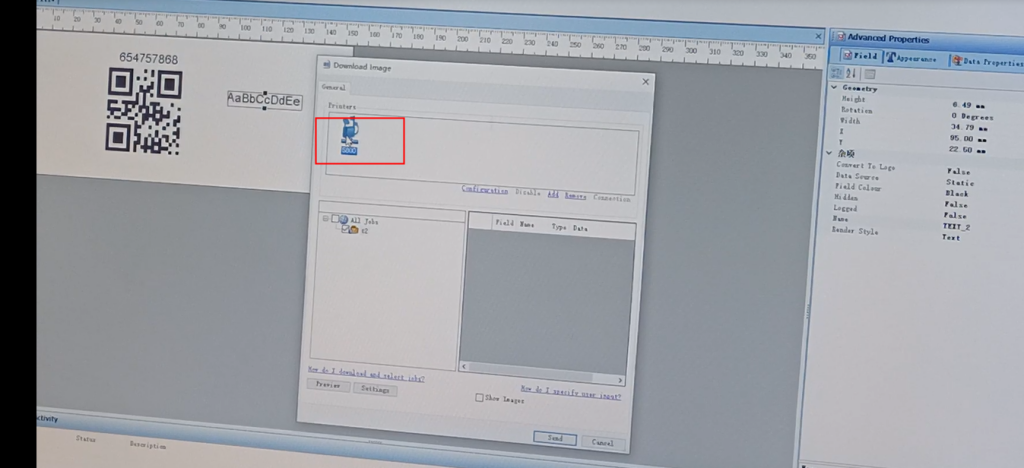
Right click here and select Download
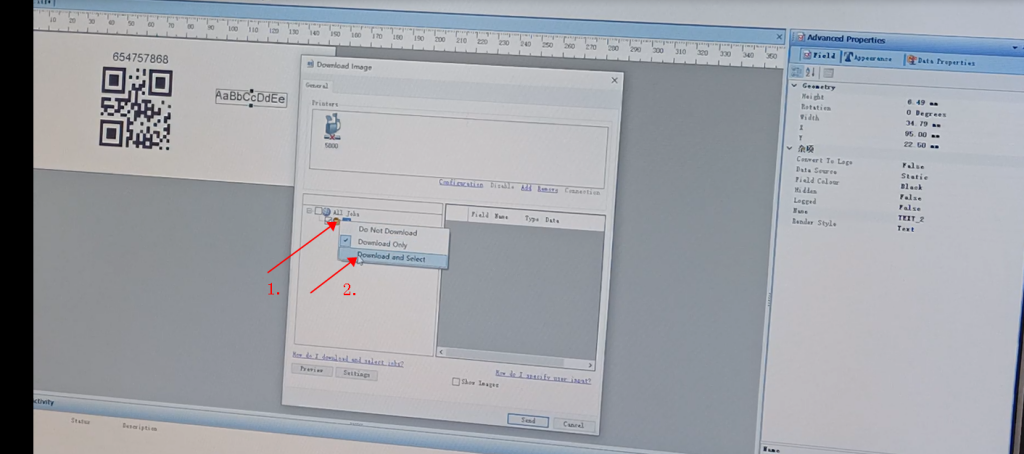
Download and select one, then click Send

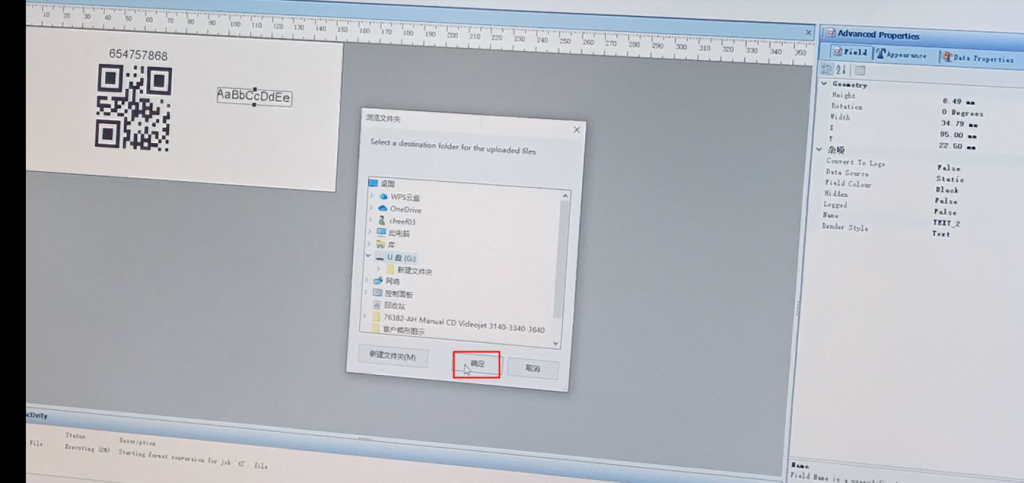
If you want to send it, we will choose our USB drive, which is a USB drive we inserted into it

Select it directly and click OK to confirm
Then let’s take a look at the things inside our USB drive. These four are the ones we downloaded, and after we save them, the USB drive can be unplugged
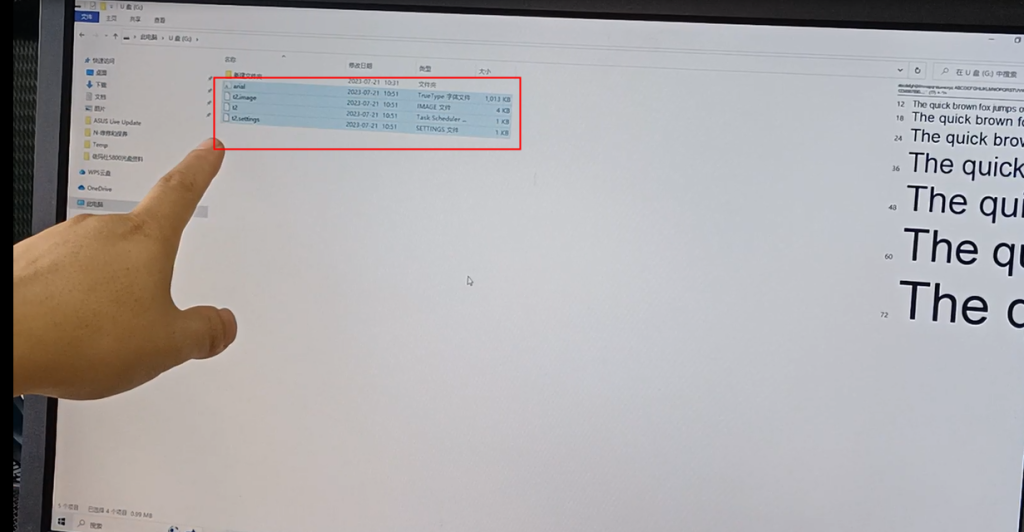
Then we unplug the USB drive and plug it into our USB port

The menu

File management

Copy the file and select the second one
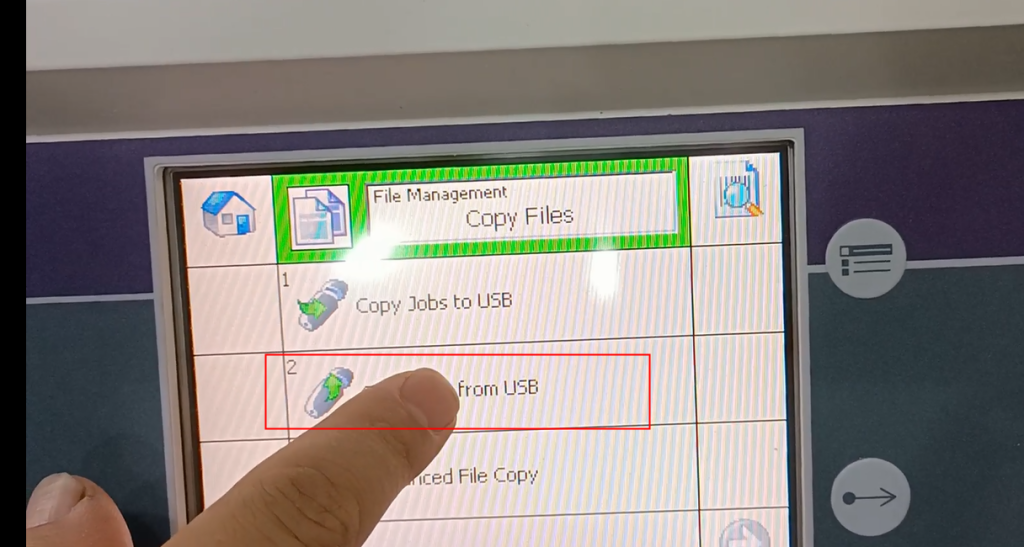
Click OK
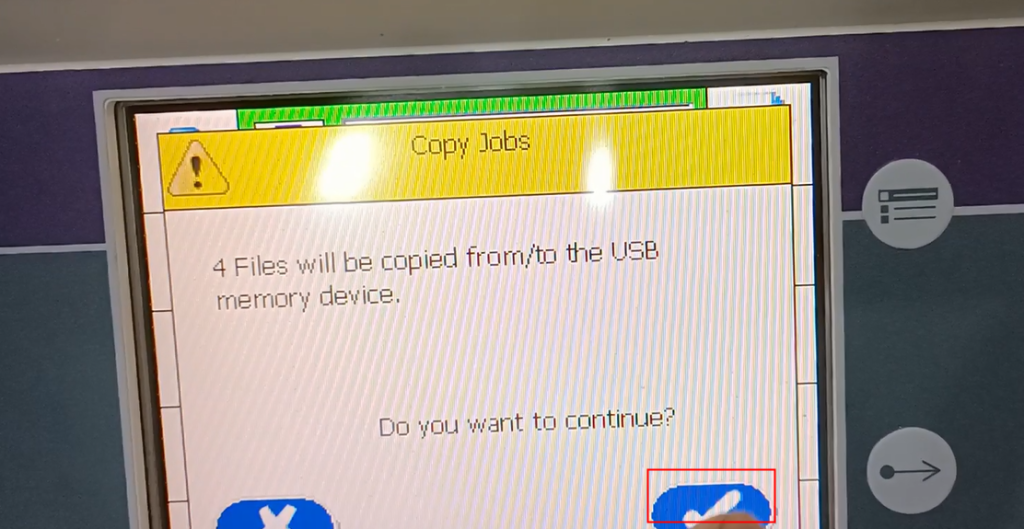
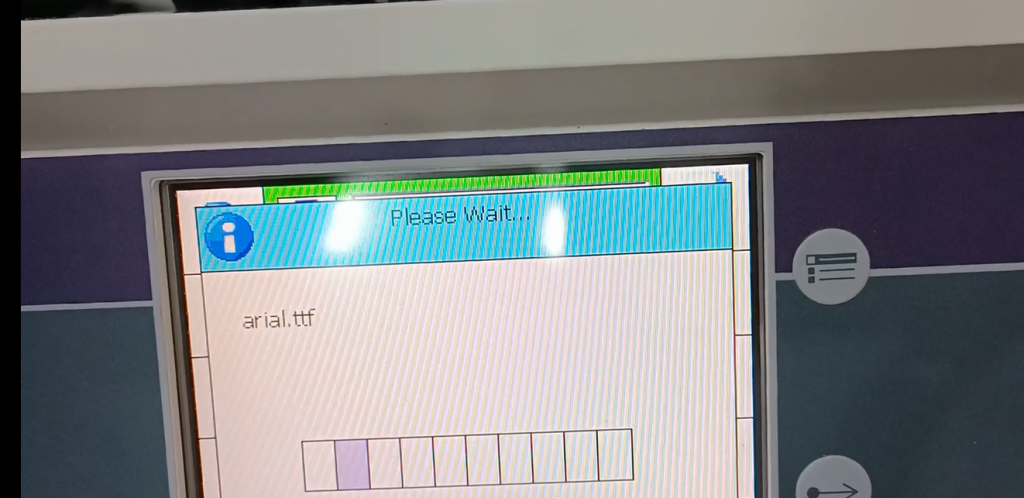
It will be uploaded, this is currently being uploaded
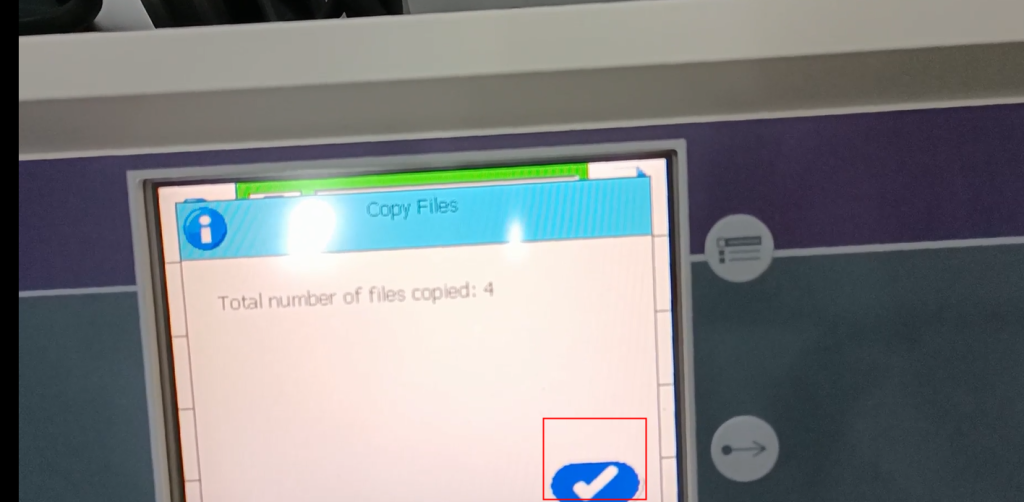
Then click OK
Click on the main page to select the assignment, and at the bottom, you can select the assignment TR
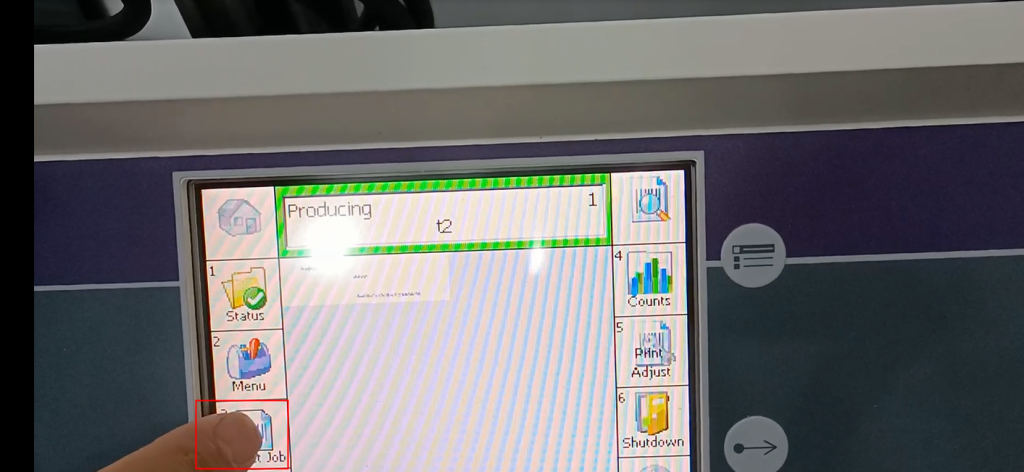
We can just select it
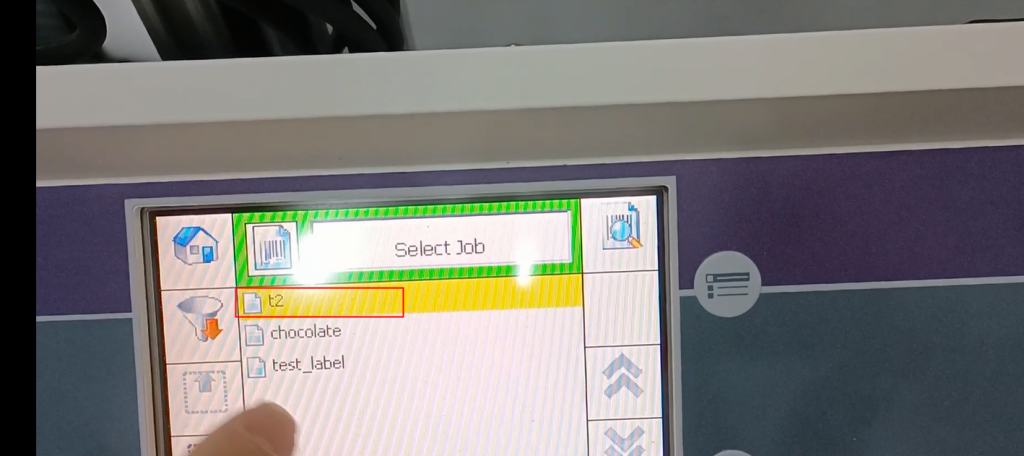
Click OK

We created a message for this

We can zoom in on all
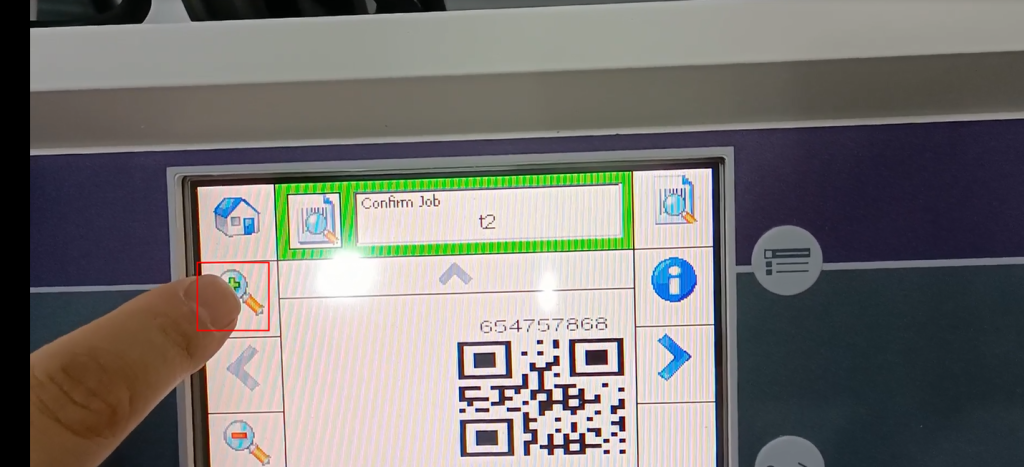
We created a message for this